

Why refresh rate matters for gaming
Refresh rate, measured in hertz (Hz), determines how many times per second your monitor displays a new image. This number directly dictates motion smoothness. When a game runs at 144 frames per second (FPS) on a 144Hz monitor, the display updates every frame, creating fluid motion. A standard 60Hz monitor caps updates at 60 times per second, limiting visual benefit even if your PC generates more frames.

Higher refresh rates reduce input lag, shortening the time between your action and the on-screen result. A 144Hz monitor updates 144 times per second, offering significantly lower latency than 60Hz. This responsiveness is vital in competitive gaming, where milliseconds determine success. The smoother transition allows for better target tracking and precision.
While 60Hz suits casual play, adjusting refresh rates for gaming unlocks a tangible advantage. The jump from 60Hz to 144Hz is widely considered the most noticeable upgrade, balancing smoothness and performance for most modern systems.
14 Optimizing Refresh Rates: Monitor Specs vs. FPS for Gaming
A 144Hz monitor delivers smoother visuals than a 60Hz panel, but the benefit depends on your GPU output. Adjusting these settings ensures your hardware matches your display for the best performance.
-
Understanding monitor refresh rate specifications
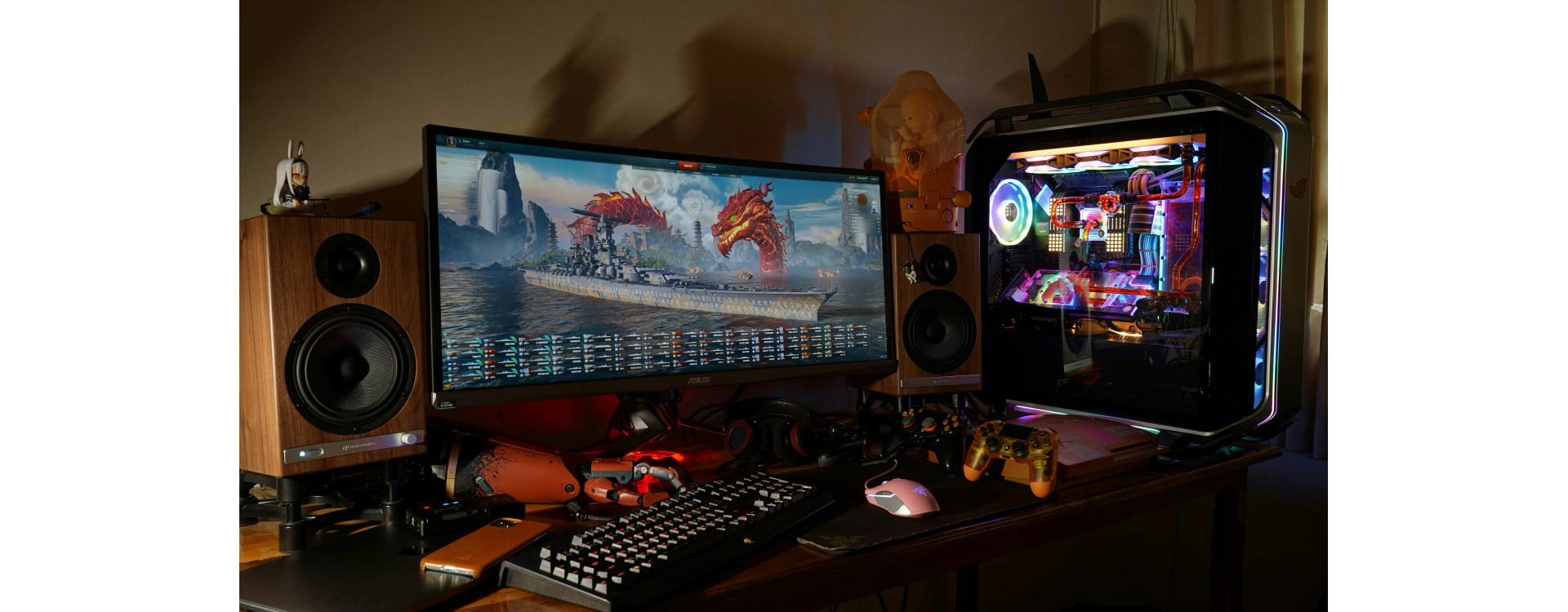
The refresh rate, measured in Hertz (Hz), dictates how many times per second a display redraws its image. A 60Hz panel updates sixty times each second, while 144Hz doubles that frequency. This specification defines the ceiling for smooth motion on screen. Higher Hz values reduce motion blur and tear, creating a more fluid visual experience regardless of the game’s internal frame output. -

Defining frames per second in gaming
Frames per second (FPS) measures the graphics processing unit’s output speed. It counts how many individual images the GPU renders in one second. High FPS ensures input commands register quickly, reducing perceived latency. When FPS exceeds the monitor’s refresh rate, frames may be discarded or displayed inconsistently. Balancing GPU power with display capabilities ensures every rendered frame contributes to the visible image without wasting computational resources. -

Comparing 60Hz versus 144Hz performance
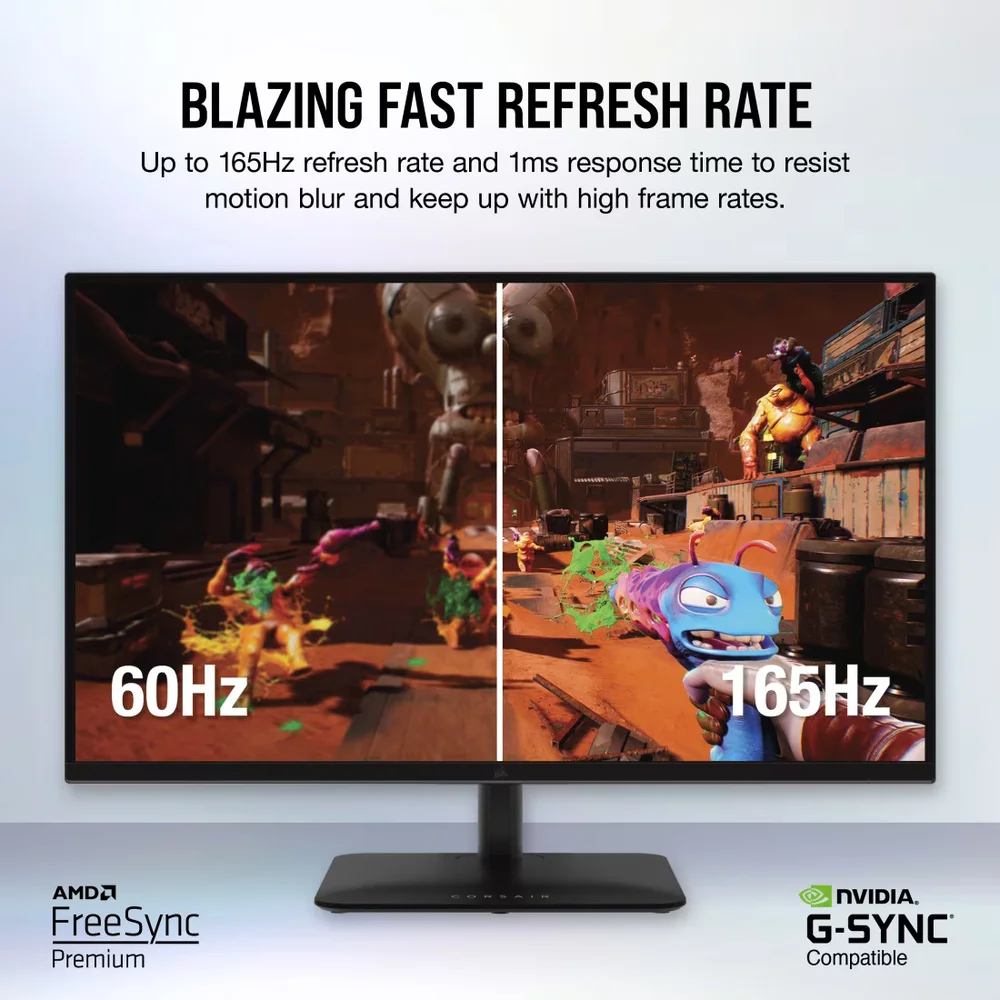
Switching from 60Hz to 144Hz dramatically alters motion clarity. The 144Hz display refreshes more than twice as often, halving the time between frame updates. This reduction minimizes ghosting during fast pans and makes tracking moving targets significantly easier. The visual jump feels immediate, transforming choppy animations into smooth, responsive sequences that improve overall gameplay comfort and precision in fast-paced titles. -
Matching GPU output to display limits
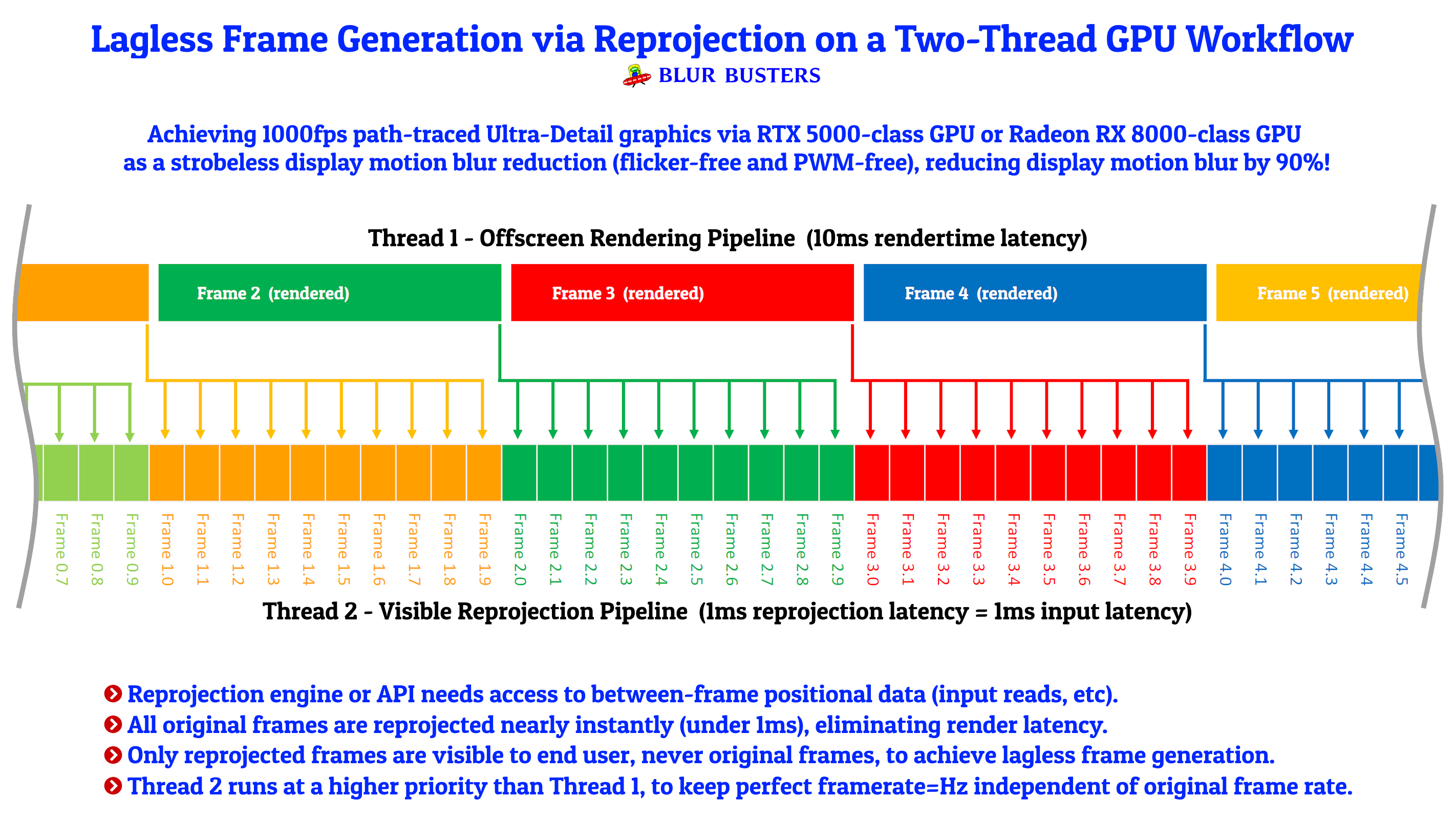
A powerful GPU producing 200 FPS on a 60Hz monitor wastes potential, as the display caps visible updates at sixty frames. Conversely, a weak GPU struggling for 40 FPS on a 144Hz panel creates stuttering visuals. The goal is aligning GPU performance with the monitor’s refresh ceiling. Adjusting in-game settings to sustain FPS near the refresh rate ensures the display receives consistent, timely updates without excessive frame duplication or tearing artifacts. -
Impact of high refresh on competitive shooters
In competitive shooters, high refresh rates provide a tangible advantage in reaction time. Faster updates allow players to spot enemy movements earlier and track targets with greater stability. The reduced input lag associated with higher Hz settings means mouse movements translate to on-screen actions more instantly. This precision helps players aim faster and react to sudden threats, turning millisecond differences into decisive victories in head-to-head engagements. -

Visual smoothness in racing simulation titles
Racing sims demand consistent frame delivery to maintain spatial awareness at high speeds. A stable 144Hz display reduces motion blur, allowing drivers to read track curbs and braking zones with greater precision. The visual continuity helps the brain process rapid directional changes without the stuttering artifacts common at lower refresh rates. This smoothness translates directly to faster lap times and more controlled vehicle handling during intense cornering sequences. -

Role of variable refresh rate technologies
Variable refresh rate (VRR) technologies like G-Sync and FreeSync synchronize the monitor’s refresh cycle with the GPU’s frame output. This eliminates screen tearing and reduces input lag when frame rates fluctuate below the monitor’s maximum limit. Instead of forcing a fixed refresh interval, the display adapts dynamically, ensuring every rendered frame appears immediately. This synchronization creates a fluid visual experience even during complex scenes with heavy particle effects or rapid camera movements. -
Adjusting in-game settings for frame caps
Manually capping frames per second prevents the GPU from generating excess frames that exceed the monitor’s refresh rate. This technique reduces input latency and minimizes screen tearing without requiring VRR support. By setting a cap slightly below the maximum refresh rate, players maintain a stable visual rhythm. This adjustment also lowers thermal output and power consumption, allowing the GPU to sustain higher average performance during extended gaming sessions without thermal throttling. -
Benefits of 240Hz for esports players
Professional esports competitors often utilize 240Hz displays to gain a marginal advantage in reaction time. The higher refresh rate reduces the time between frame updates, allowing players to spot enemy movements slightly earlier than on 144Hz screens. This split-second difference can determine the outcome of close-range engagements in fast-paced tactical shooters. The increased smoothness also aids in tracking fast-moving targets, providing a clearer visual path during rapid aim adjustments. -

Cost analysis of high refresh monitors
High refresh rate monitors have become more affordable, but price disparities remain between entry-level 144Hz panels and premium 240Hz+ options. Entry-level models often sacrifice panel quality or response times to hit lower price points. Mid-range options typically offer the best balance of performance and cost. Evaluating the price-per-hertz ratio helps buyers determine whether the visual improvement justifies the additional expense, especially when considering the diminishing returns beyond 240Hz for most non-competitive gamers. -

Cable bandwidth requirements for high FPS
Pushing 144Hz or higher demands sufficient data throughput to avoid signal drops. HDMI 2.0 handles 144Hz at 1440p, but 4K often requires HDMI 2.1 or DisplayPort 1.4. Using an outdated cable creates bottlenecks, forcing the monitor to drop resolution or refresh rate. Always verify your cable supports the specific bandwidth needed for your target resolution and frame rate to maintain a stable connection. -

Input lag differences at higher refresh rates
Higher refresh rates significantly reduce input lag, creating a tighter connection between your actions and on-screen response. Moving from 60Hz to 144Hz cuts the time between frame updates, making aiming feel more immediate. This reduction in delay is vital for competitive gaming, where milliseconds determine success. Testing specific setups helps quantify this advantage for your particular hardware configuration. -

Evaluating motion clarity in fast action scenes
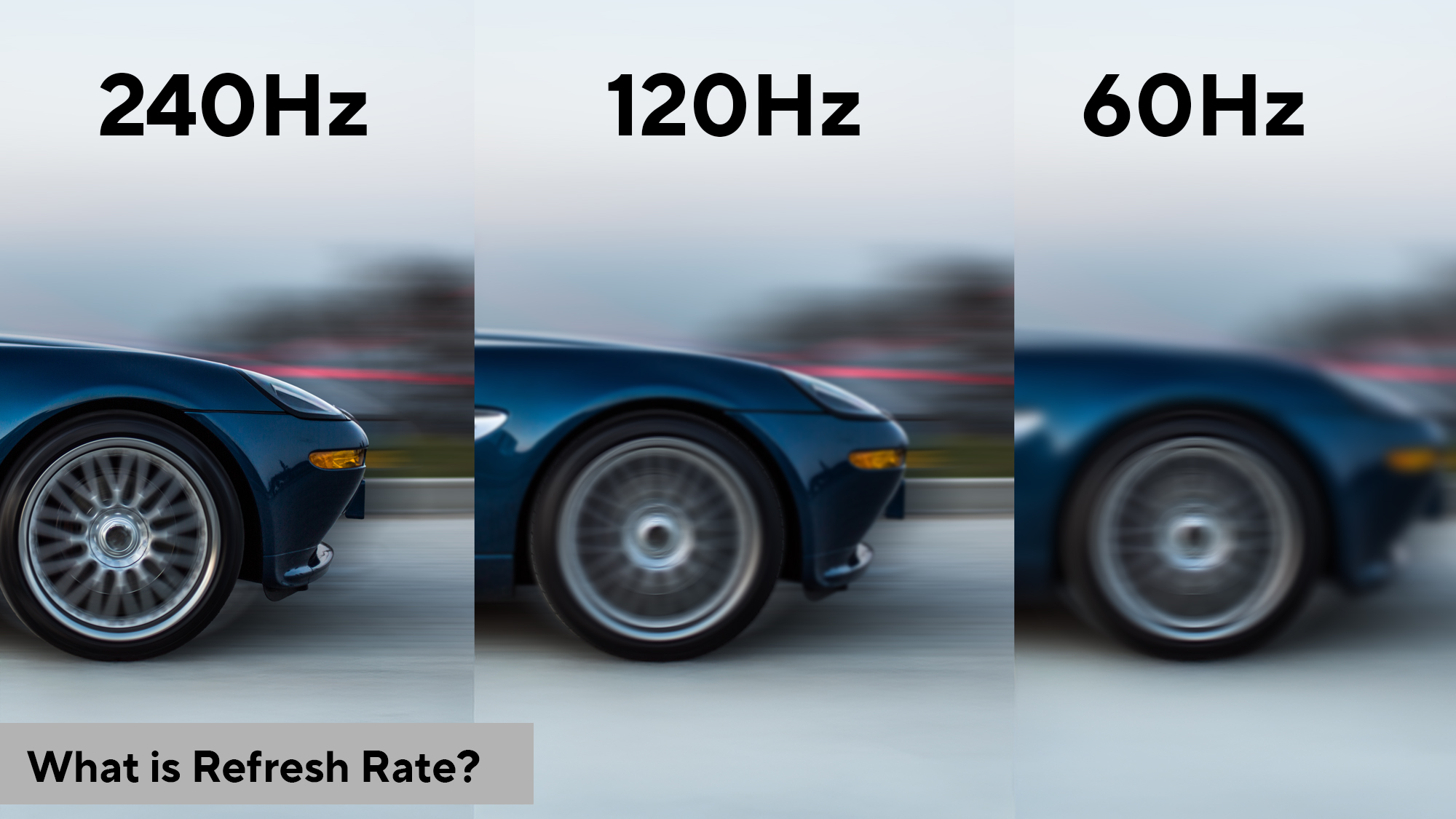
Fast-moving objects blur more at lower refresh rates because each frame stays on screen longer. Increasing to 144Hz or 240Hz shortens exposure time per frame, sharpening fast-paced sequences in shooters or racing games. This clarity helps track enemies or obstacles without visual smearing. Adjusting your refresh rate directly impacts how distinctly you perceive rapid movement during intense gameplay moments. -
Setting optimal refresh rates for mixed usage
Not every task benefits from maximum refresh rates. For office work or media consumption, 60Hz is often sufficient and saves power. Reserve 144Hz or higher for gaming sessions where smoothness matters. Many monitors allow quick switching between these modes via OSD menus. Balancing these settings ensures you get performance when needed while maintaining efficiency during everyday computing tasks.
Monitor refresh rates explained
To get the most out of your gaming setup, you need to understand the relationship between your monitor's hardware limits and your computer's software output. The monitor refresh rate, measured in hertz (Hz), is the number of times per second the screen updates with a new image. Think of this as the speed limit of your display hardware. If your monitor is rated at 144Hz, it can physically show up to 144 distinct images every second.
Frames per second (FPS), on the other hand, is what your GPU actually produces. This is the software output generated by your game engine and graphics card. If your computer is powerful enough to render 200 FPS but your monitor only supports 60Hz, you will only see 60 frames. The extra 140 frames are rendered but never displayed, essentially wasted effort. Conversely, if you have a 240Hz monitor but your game only runs at 60 FPS, the monitor will simply repeat frames to fill the time, and you won't experience the smoothness the hardware is capable of.
For optimal performance, these two numbers must align. You want your GPU to produce enough FPS to match or exceed your monitor's refresh rate. This ensures that every time the screen refreshes, it has a brand-new frame to display, resulting in fluid motion and reduced input lag. Mismatching these specs is like driving a car with a top speed of 150 mph on a road with a 30 mph limit; the potential is there, but you can't use it.
| Specification | 60Hz Monitor | 144Hz Monitor | 240Hz Monitor |
|---|---|---|---|
| Max Displayable FPS | 60 | 144 | 240 |
| Typical GPU Requirement | Low | Medium-High | Very High |
| Best Use Case | Casual, Story Games | Competitive FPS, MOBA | Pro-Level Competitive |
| Motion Clarity | Standard | Smooth | Ultra-Fluid |
Matching GPU Power to Refresh Rate
A high refresh rate is only as good as the frames your graphics card can produce. If your monitor supports 144Hz but your GPU can only deliver 60 frames per second (FPS), you are leaving performance on the table. The monitor will simply wait for the next frame, resulting in stuttering or capped visuals that defeat the purpose of the upgrade. You need a GPU capable of sustaining frame rates above your monitor's refresh ceiling to feel the difference.
For example, playing a competitive shooter at 144Hz requires a steady 144 FPS. If your current hardware tops out at 100 FPS, the smoothness you expect from the higher refresh rate will be unattainable. In this scenario, you have two paths: lower your resolution or graphics settings to boost FPS, or upgrade your GPU to match the monitor's potential.
Modern GPUs offer tools to bridge this gap. Technologies like NVIDIA's DLSS (Deep Learning Super Sampling) and AMD's FSR (FidelityFX Super Resolution) use upscaling to improve performance. They render the game at a lower resolution and use AI or algorithms to upscale it, allowing you to maintain high FPS even on demanding titles without a massive hardware upgrade.

Set the right FPS cap
When your GPU generates more frames per second than your monitor can display, you create a mismatch. This excess frame production causes screen tearing and stuttering, which disrupts the visual flow. To keep your gaming experience smooth, you need to synchronize your output with your display's refresh rate.
The most effective method is to cap your FPS slightly below your monitor's maximum refresh rate. For example, if you have a 144Hz monitor, set your FPS limit to 141 or 142. This small buffer ensures that every frame is ready before the monitor is ready to display it, preventing the stutter that occurs when a new frame arrives mid-scan.

Check your display settings to confirm your monitor's native refresh rate, such as 60Hz, 144Hz, or 240Hz. This number is the baseline for your cap.
Open your game's video settings or your GPU control panel (NVIDIA Control Panel or AMD Adrenalin). Locate the "Maximum Frame Rate" or "Frame Rate Limit" option.

Set the limit to your refresh rate minus 1 or 2. For a 144Hz display, this means capping at 141-142 FPS. This ensures the GPU finishes a frame just before the monitor is ready for the next one.
By adjusting your FPS cap in this way, you improve the consistency of your frame delivery. This small technical tweak often makes a more noticeable difference in gameplay smoothness than upgrading hardware alone.
Adjust Windows display settings for refresh rate
Windows 11 gives you direct control over how often your screen updates. Setting the right refresh rate ensures your monitor runs at its intended speed, matching the frames your GPU produces. If your display is stuck at 60Hz, you might be missing out on smoother motion in games.
Set the refresh rate in Display settings
Right-click an empty area on your desktop and select Display settings. Scroll down to the Advanced display section and click the link to open the detailed view. In the dropdown menu under Choose a refresh rate, select the highest option available, such as 144Hz or 165Hz. This change applies immediately, so you can verify the smoothness before clicking Keep changes.

Right-click the desktop background and select Display settings from the context menu. This opens the main system display panel where you can manage resolution and color profiles.

Scroll to the bottom of the settings window and click Advanced display. This link reveals the specific hardware capabilities of your monitor, including the current refresh rate and refresh rate options.

Locate the Choose a refresh rate dropdown menu. Select the highest frequency supported by your monitor, such as 144Hz. Confirm the change appears correctly on screen before saving.
Enable Dynamic Refresh Rate (DRR)
Windows 11 includes a feature called Dynamic Refresh Rate (DRR) that adjusts the refresh rate automatically based on your activity. When you are scrolling through text or reading, it may drop to a lower rate to save power. When you move the mouse or play a game, it ramps back up to the maximum rate. This feature is often enabled by default but can be toggled in the same Advanced display menu under the Refresh rate dropdown if you prefer manual control.
VSync, G-Sync, and FreeSync
High refresh rates only solve part of the equation. Without synchronization between your GPU and monitor, you will likely encounter screen tearing—a visual glitch where two different frames appear simultaneously. This happens because the monitor refreshes its screen while the GPU is still writing a new frame. Adaptive sync technologies like VSync, G-Sync, and FreeSync resolve this by aligning the display's refresh rate with the GPU's frame output.
VSync was the original solution. It forces the GPU to wait for the monitor's refresh cycle, eliminating tearing. However, this waiting period introduces input lag, which can make fast-paced games feel sluggish. If your system cannot sustain a frame rate that matches the monitor's refresh rate, VSync can actually reduce performance further by capping frames and causing stuttering.
Adaptive sync technologies, such as NVIDIA G-Sync and AMD FreeSync, offer a better alternative. Instead of locking the frame rate to the refresh rate, these technologies adjust the monitor's refresh rate in real-time to match the GPU's output. This eliminates tearing and reduces stutter without adding the significant input lag associated with traditional VSync. For example, if your GPU is outputting 120 frames per second on a 144Hz monitor, G-Sync or FreeSync will adjust the monitor to refresh at 120Hz, ensuring smooth, tear-free visuals.
Cable and Port Limitations
A 240Hz monitor is only as fast as the connection feeding it. If you plug a high-refresh display into the wrong port or use an outdated cable, you will cap your performance, often dropping silently to 60Hz or 144Hz without any error message. This bottleneck is one of the most common reasons gamers fail to achieve their target refresh rates despite having powerful hardware.
DisplayPort generally offers higher bandwidth than HDMI, making it the preferred choice for PC gaming. For example, DisplayPort 1.4 can easily handle 144Hz at 1440p, while many HDMI 2.0 ports will struggle to exceed 120Hz at the same resolution. Even if your GPU and monitor support higher speeds, an older HDMI cable may physically lack the bandwidth to transmit the data, forcing the system to default to a lower refresh rate.
Always verify the version numbers on both your GPU ports and your monitor inputs. Using a certified high-speed cable ensures you can actually utilize the full potential of your display. If you are unsure, check the manufacturer’s specifications for the maximum refresh rate supported by each specific port on your monitor, as some models may limit certain inputs to lower standards.
When 60Hz is still enough
For many players, a 60Hz monitor is more than sufficient. If you primarily play single-player adventures, strategy games, or turn-based titles, the smoothness of a higher refresh rate offers little practical benefit. In these genres, gameplay is measured in minutes or hours rather than milliseconds, making the visual fluidity of 144Hz largely irrelevant to the experience.
Cost is another significant factor. A 60Hz panel is substantially cheaper than its high-refresh counterparts. For gamers on a tight budget, allocating funds toward a better GPU or a larger storage drive often yields a more noticeable improvement in overall gaming quality than upgrading the display speed.
It is also important to match your hardware capabilities to your display. A 60Hz monitor caps your visual output at 60 frames per second. If your PC cannot consistently maintain that frame rate in demanding titles, a 144Hz screen will remain underutilized. In such cases, a 60Hz display ensures you are getting the most out of your current setup without paying for performance you cannot deliver.
Upgrading your monitor setup
Choosing the right monitor means matching the hardware to your actual usage, not just chasing the highest number on the box. A 60Hz display is perfectly adequate for strategy games or single-player campaigns where visual fidelity matters more than reaction time. However, if you play competitive shooters or fast-paced action titles, the jump to 144Hz or 240Hz provides a tangible advantage in motion clarity and input responsiveness.
Your GPU capability dictates which refresh rate you can actually sustain. If your graphics card cannot consistently output frame rates near the monitor's maximum, the extra Hz goes unused. In these cases, setting a frame cap slightly below your monitor's refresh rate—such as locking 141 FPS on a 144Hz screen—can help maintain stability without overwhelming the system. Technologies like DLSS or FSR can also help bridge the gap, allowing you to push higher frame rates at lower resolutions.
Budget constraints often force a trade-off between panel quality and refresh rate. Entry-level 144Hz panels are widely available and offer a massive improvement over standard 60Hz screens for a modest price increase. For most gamers, this is the sweet spot. Higher-end 240Hz+ monitors are niche products reserved for professional esports players who need every millisecond of advantage.


As an Amazon Associate, we may earn from qualifying purchases.
Troubleshooting low refresh rates
If your monitor is stuck at 60Hz instead of its rated 144Hz, the issue usually lies in the settings or connections rather than the hardware itself. Think of your display setup like a water pipe; if the water (signal) isn't flowing at the expected pressure (refresh rate), you need to check every joint in the chain—from the graphics card to the cable and finally the monitor's input menu.
Check Windows Display Settings
Windows often defaults to a safe, lower refresh rate to ensure compatibility. To adjust this, right-click your desktop and select Display settings. Scroll down to Advanced display and look for the "Choose a refresh rate" dropdown. If 144Hz (or your monitor's max) isn't listed here, the system isn't receiving the signal correctly, and you'll need to check your cable or GPU settings.
Verify Cable Bandwidth
Not all cables can handle high refresh rates at high resolutions. HDMI 1.4, for example, caps out at 144Hz for 1080p but struggles with 1440p or 4K. DisplayPort is generally more reliable for high refresh rates. If you are using an older HDMI cable, try swapping it for a certified High-Speed HDMI or a DisplayPort cable. Ensure both ends are firmly seated; a loose connection can drop the signal to 60Hz.
Inspect Monitor OSD Settings
Sometimes the monitor itself is configured to limit the refresh rate. Use the physical buttons on your display to open the On-Screen Display (OSD) menu. Look for settings labeled "Overdrive," "Response Time," or "Refresh Rate." Some monitors have a "Game Mode" that must be enabled to unlock higher frequencies. Also, check if "FreeSync" or "G-Sync Compatible" is active, as these features can sometimes conflict with specific refresh rates if not configured correctly in your GPU control panel.
Final settings checklist
Use this quick-reference list to verify your monitor specs and game settings before your next session. Proper configuration ensures your hardware runs at its full potential without unnecessary strain.
Right-click your desktop and select Display settings. Click Advanced display to verify the refresh rate. Ensure it matches your monitor's maximum (e.g., 144Hz instead of 60Hz) to unlock smoother motion.
Set your in-game frame cap slightly below your monitor's refresh rate. For a 144Hz display, locking FPS to 141 prevents screen tearing and reduces input lag without wasting GPU resources.
Turn on adaptive sync in your GPU control panel and monitor OSD. This technology synchronizes the monitor's refresh rate with the GPU's frame output, eliminating stuttering during heavy scenes.
Lower demanding effects like shadows and anti-aliasing to maintain stable frame rates. Use DLSS or FSR if available to boost performance while keeping visual quality high.
Run a benchmark or play a fast-paced game to confirm settings. Check for visual artifacts or performance drops, then adjust individual settings as needed for your specific setup.
No comments yet. Be the first to share your thoughts!