

Why higher refresh rates improve gaming
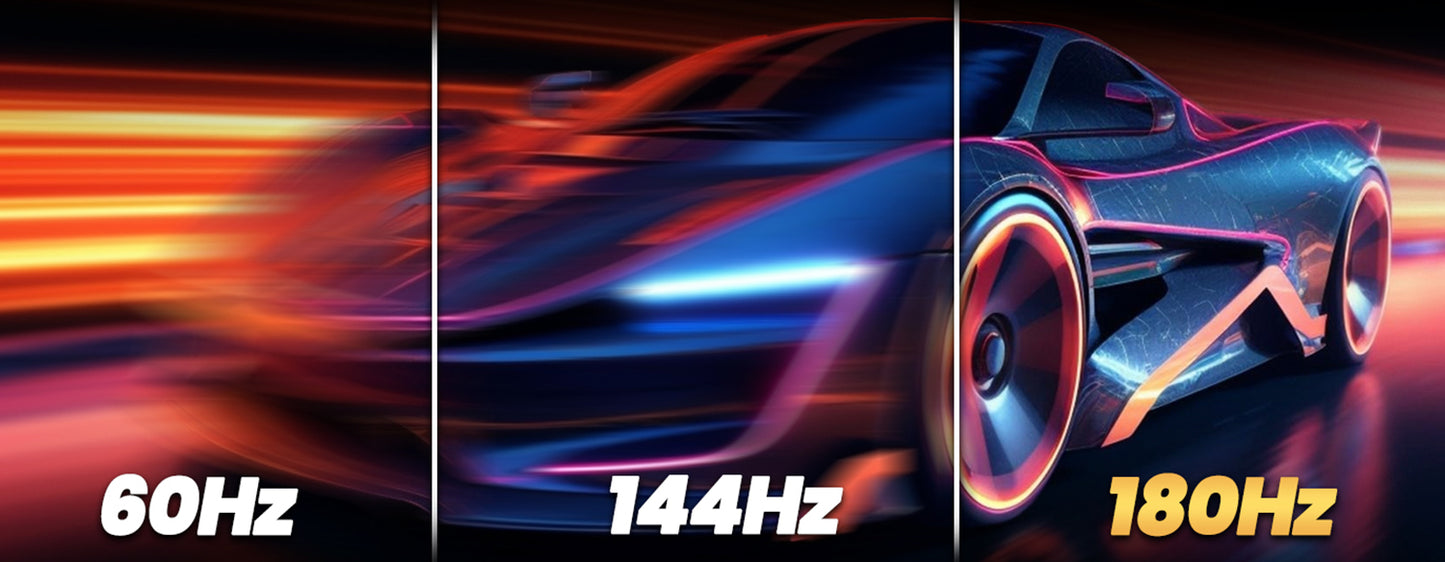
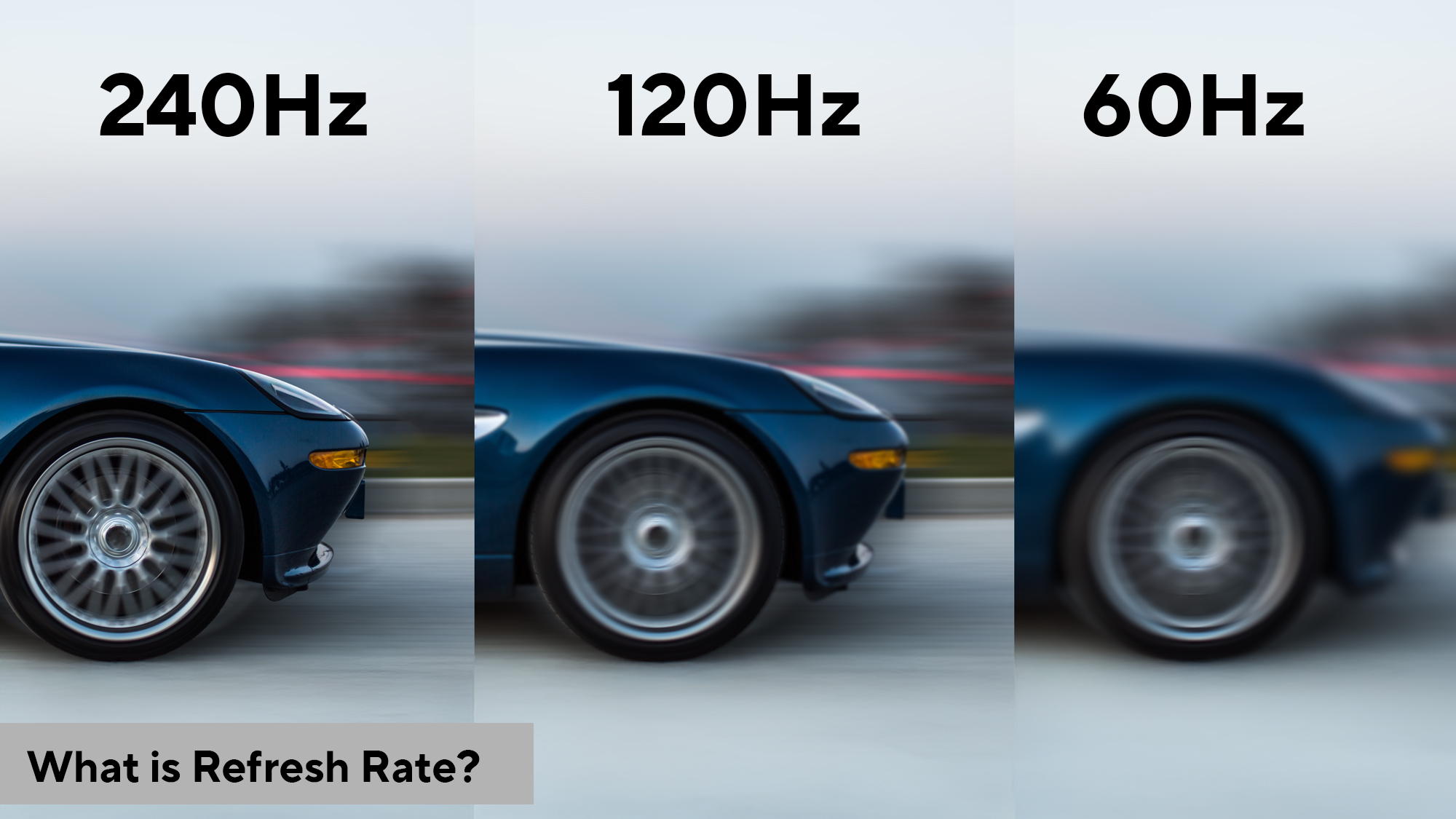
A higher refresh rate reduces motion blur, allowing you to track fast-moving targets with greater precision. When a monitor updates the screen more frequently, images remain distinct rather than smearing across the display. This clarity is particularly noticeable in fast-paced shooters where split-second visibility determines the outcome.
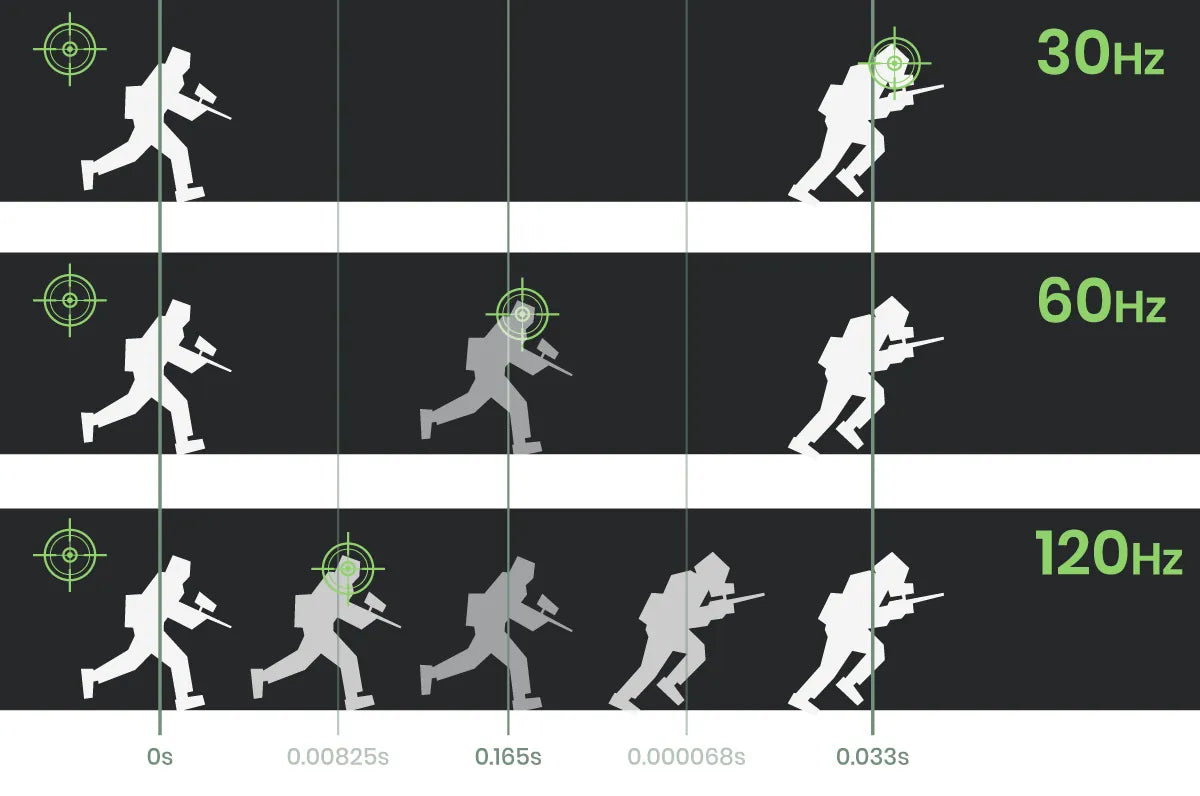
Smoother motion also lowers input latency. Each frame generated by your graphics card appears on screen sooner, shortening the delay between your physical input and the visual response. This direct connection makes aiming feel more responsive and intuitive.
The human eye may not process individual frames like a computer, but it detects motion and responsiveness well into the 100–200 FPS range. Choosing a 144Hz or faster monitor ensures you see more of those updates, providing a tangible advantage in competitive play.
Monitor specs vs. mobile motion
Comparing desktop monitors to mobile devices requires separating hardware limits from software tricks. Desktop monitors rely on native panel refresh rates, while mobile devices often use interpolation to simulate smoothness. Understanding this distinction helps you choose the right hardware for your actual needs.
What refresh rate actually means
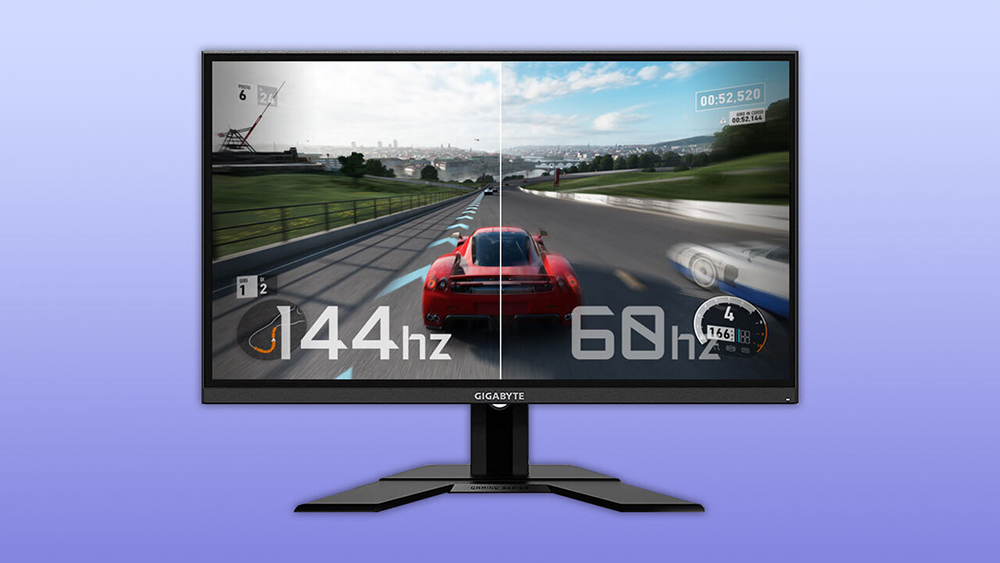
Refresh rate is the number of times per second your screen updates the image. It is measured in Hertz (Hz). A 60Hz display refreshes 60 times every second, while a 144Hz display refreshes 144 times. When you are optimizing refresh rates, this number defines the ceiling for visual smoothness.
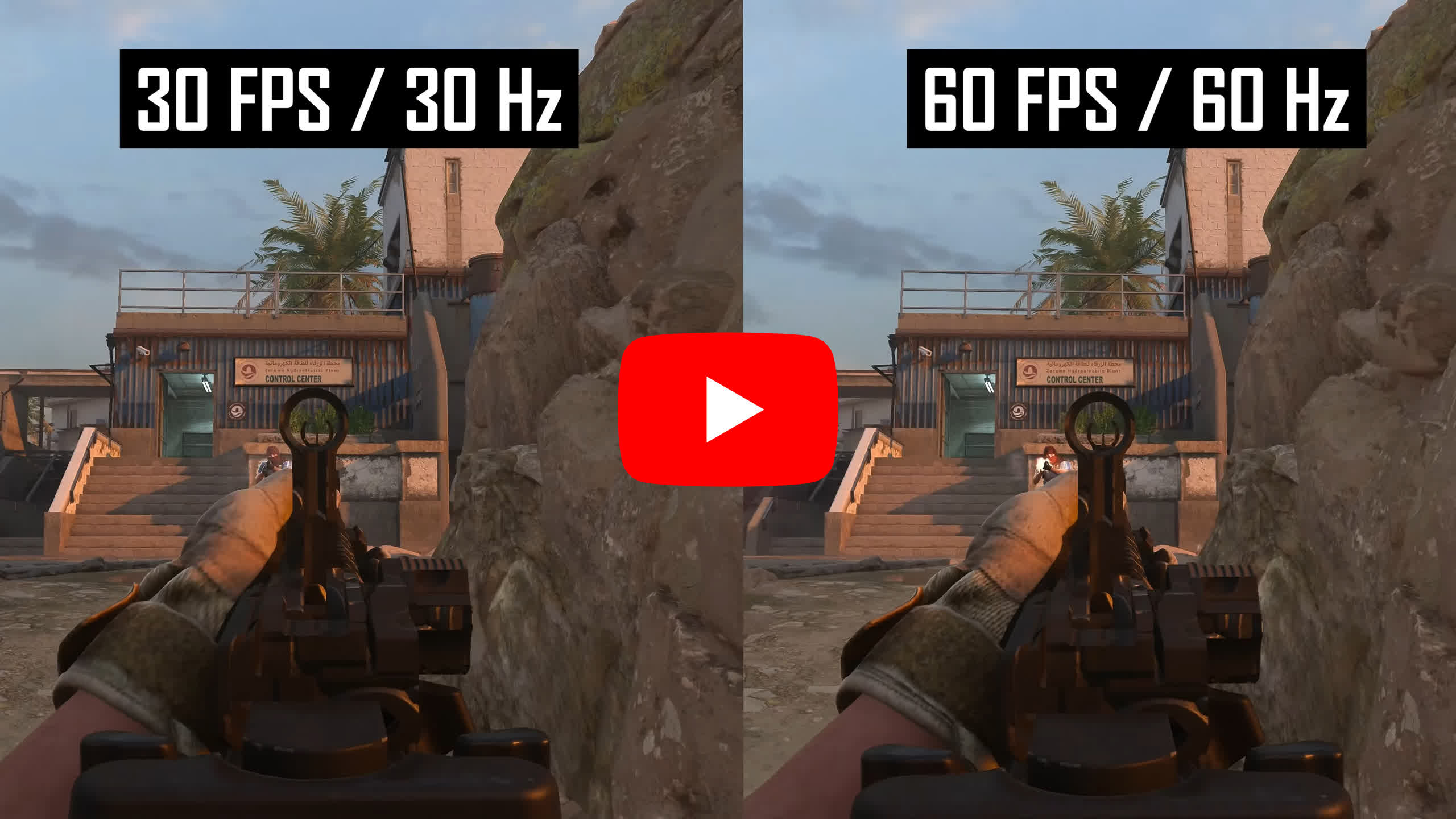
It is easy to confuse refresh rate with frame rate (FPS), but they are different. Frame rate is how many images your computer’s graphics card generates each second. Refresh rate is how many of those images the screen can actually show. If your computer outputs 120 FPS but your monitor is locked at 60Hz, the screen can only display 60 of those frames. The extra frames are wasted.
Think of refresh rate like a film projector. The computer generates the frames, but the projector (the monitor) dictates how fast the film moves. A higher refresh rate makes movement look fluid. This is why competitive gamers often upgrade to 144Hz or 240Hz displays, as the difference in responsiveness is tangible during fast-paced action.
Monitor refresh rates compared
Choosing the right refresh rate involves balancing visual smoothness, hardware capability, and budget. While the human eye can detect motion and responsiveness well into the 100–200 FPS range, the jump between standard tiers offers distinct practical differences. Understanding these tiers helps you align your hardware with your actual usage, whether that’s competitive gaming, creative work, or general browsing.
60Hz: The Standard Baseline
A 60Hz refresh rate remains the default for most office monitors and casual home setups. It provides a stable, flicker-free experience that is perfectly adequate for web browsing, document editing, and watching video content. For users who do not play fast-paced competitive shooters, the difference between 60Hz and higher rates is often negligible in daily tasks.
144Hz: The Gaming Sweet Spot
The jump from 60Hz to 144Hz is widely considered the most significant upgrade for gamers. This tier doubles the frame updates, resulting in noticeably smoother motion and reduced input lag. It is the standard for modern esports titles and offers a compelling balance of performance and cost, making it the most popular choice for dedicated gaming PCs.
240Hz and 360Hz: Competitive Edge
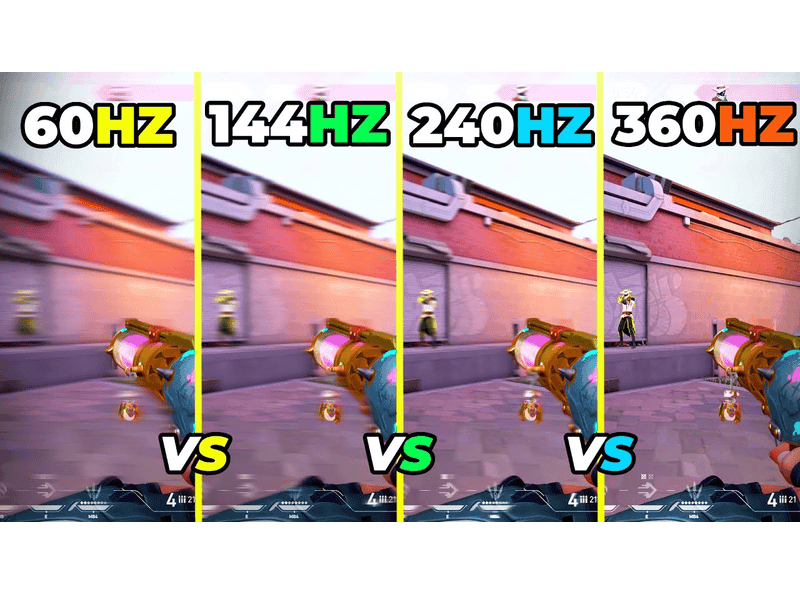
Tiers like 240Hz and 360Hz are designed for professional and semi-professional esports players. A 240Hz monitor is roughly 70% faster than a 144Hz display, offering marginal gains in clarity and reaction time. At 360Hz, the motion becomes exceptionally fluid, but these monitors demand high-end GPUs to maintain consistent frame rates and come at a premium price point.
| Tier | Refresh Rate | Best For | GPU Demand |
|---|---|---|---|
| Standard | 60Hz | Office work, media consumption | Low |
| Gaming | 144Hz | Competitive gaming, general use | Medium |
| Pro Gaming | 240Hz | Esports, fast-paced shooters | High |
| Elite | 360Hz | Professional esports | Very High |


As an Amazon Associate, we may earn from qualifying purchases.
iPhone 14 motion rate explained
The iPhone 14 operates on a fixed 60Hz display panel. Unlike many modern Android flagships that feature variable refresh rates (VRR) or ProMotion technology to dynamically adjust between 10Hz and 120Hz, the iPhone 14’s screen refreshes at a constant 60 times per second. This hardware baseline means the device does not technically support the high-refresh-rate smoothness found in its Pro counterparts or competing gaming phones.
However, the perception of smoothness on the iPhone 14 is maintained through two distinct software and hardware strategies: high touch-sampling rates and motion interpolation. First, the device employs a high touch-sampling rate, typically around 120Hz or higher, which means the screen is scanning for your finger’s position twice as often as it is refreshing the image. This creates a responsive feel where gestures register instantly, even if the visual output is capped at 60 frames per second.
Second, Apple uses motion interpolation to bridge the gap between 60fps content and user expectations. By analyzing motion vectors in video and UI animations, the system can generate intermediate frames to reduce perceived stutter. This technique, combined with the high touch responsiveness, tricks the eye into perceiving fluidity that the raw 60Hz refresh rate alone would not provide.
When optimizing refresh rates for your workflow, it is important to distinguish between panel refresh rate and touch sampling. A higher touch-sampling rate improves input latency, making the device feel snappier, while a higher panel refresh rate reduces motion blur and judder. The iPhone 14 prioritizes the former to compensate for the latter, offering a balanced experience despite its older display hardware.
Motion rate vs refresh rate
Understanding the difference between motion rate and refresh rate is essential for optimizing refresh rates across different devices. The term refresh rate refers to the native hardware capability of a display to update its image a specific number of times per second, measured in hertz (Hz). A 60Hz monitor physically redraws the screen 60 times every second. This is a fixed physical limit of the panel.
Motion rate, often seen on televisions and mobile devices like iPhones, is a marketing term that describes how the device processes video to make it appear smoother. Manufacturers use interpolation to insert artificial frames between the original ones. For example, a TV might claim a 120 Motion Rate even if the panel only refreshes at 60Hz. The processor generates fake frames to fill the gaps, creating a smoother look for standard 24fps or 30fps content.
This distinction matters because it affects how you evaluate display specs. A high motion rate does not mean the hardware is faster; it means the software is working harder to mask lower native speeds. For gaming and fast-paced content, native refresh rate is the true metric for performance. Interpolation can sometimes introduce input lag or "soap opera effect" artifacts that detract from the experience. When shopping for monitors, focus on the native Hz rating rather than motion smoothing claims.
Refresh Rate vs. FPS Explained
Think of your GPU as a painter and your monitor as a canvas that updates at a fixed speed. Frames per second (FPS) measures how many images the GPU produces every second. Refresh rate (Hz) measures how many times per second the screen can redraw itself. When these two numbers align, you get smooth motion without wasted effort or visual tearing.
If your GPU outputs 144 FPS but your monitor is capped at 60Hz, the screen can only show 60 of those frames. The extra 84 frames are discarded, meaning you paid for performance you cannot see. Conversely, a 144Hz monitor connected to a device producing only 30 FPS will look choppy, regardless of the screen's capability. The display is waiting for updates that never arrive.
For optimal performance, aim for FPS that matches or slightly exceeds your monitor's refresh rate. This ensures the screen is always fed fresh data, minimizing input lag and stutter. If your hardware cannot sustain high FPS, consider lowering graphical settings or enabling V-Sync to synchronize the GPU output with the monitor's refresh cycle.
How to set refresh rate on Windows
Adjusting your monitor’s refresh rate in Windows 11 is straightforward. This setting controls how many times per second your screen updates, directly impacting motion smoothness and input latency. You can manually set a fixed rate or enable Dynamic Refresh Rate (DRR) to balance performance and battery life.
Right-click an empty area on your desktop and select Display settings from the context menu. This opens the main system settings window where you can manage your screen configuration.
Scroll down to the Scale & layout section and click the Advanced display link. This page lists all connected monitors and displays their current resolution and refresh rate details.
If you have multiple screens, use the drop-down menu at the top labeled Choose a display to view or change settings. Ensure the correct monitor is selected so your changes apply to the right screen.
Look for the Choose a refresh rate drop-down menu. Select your desired rate, such as 120Hz or 144Hz, if available. Windows will preview the change; click Keep changes if the display looks correct, or revert if it fails to load.
If your hardware supports it, toggle Dynamic Refresh Rate to On. DRR automatically adjusts the refresh rate based on your activity, lowering it for static content to save power and raising it for scrolling or gaming.
If you do not see higher refresh rates in the list, your monitor or cable may not support them. Ensure you are using a DisplayPort or HDMI cable that meets the bandwidth requirements for your monitor's maximum resolution and refresh rate.
Adjusting GPU Settings for High Hz
To maximize frame rates on a high-refresh-rate display, you need to shift your graphics driver settings from visual fidelity to raw performance. When pushing for 144Hz or 240Hz, every millisecond counts, and graphical bells and whistles are often the first bottleneck.
Start by opening your NVIDIA Control Panel or AMD Adrenalin software. Locate the global or program-specific 3D settings. Here, you will find several toggles that directly impact performance. Disable V-Sync, as it caps your frame rate to the monitor’s refresh rate and can introduce input lag. Turn off ambient occlusion and motion blur, which are heavy on the GPU but offer minimal competitive advantage.
Next, prioritize texture filtering quality. Set it to "High Performance" or "Performance" rather than "Quality." This change is often invisible in fast-paced gameplay but frees up significant processing power. If your GPU supports it, enable DLSS (NVIDIA) or FSR (AMD). These upscaling technologies render the game at a lower resolution and upscale it, boosting FPS without a noticeable drop in clarity.
Finally, ensure your power management mode is set to "Prefer Maximum Performance." This prevents the GPU from downclocking during minor idle moments, ensuring consistent frame delivery. These adjustments act as the engine tuning for your monitor’s potential, ensuring the hardware keeps pace with the display's speed.
Sync technologies: G-Sync and FreeSync
High refresh rates smooth out motion, but they don’t solve the problem of screen tearing. Tearing happens when your GPU sends a new frame to the display while the monitor is already in the middle of drawing the previous one. The result is a visible horizontal split where two frames overlap. This mismatch is common in fast-paced games where frame rates fluctuate.
Variable Refresh Rate (VRR) technologies like NVIDIA G-Sync and AMD FreeSync solve this by synchronizing the monitor’s refresh rate with the GPU’s frame output. Instead of forcing the monitor to refresh at a fixed interval, the display waits for the GPU to finish rendering a frame before updating the screen. This ensures every frame is displayed completely, eliminating tearing and reducing stuttering.
G-Sync was originally developed by NVIDIA for use with their dedicated graphics cards, while FreeSync is an open standard supported by AMD cards and many NVIDIA GPUs in recent years. Both technologies rely on DisplayPort or HDMI bandwidth to transmit timing signals. When properly configured, they make motion appear significantly smoother, especially during intense scenes where frame rates drop below the monitor’s maximum refresh rate.
To get the most out of these features, you must enable VRR in both your monitor’s OSD menu and your GPU control panel. Without this dual activation, the monitor will revert to standard fixed refresh rates, and tearing will return. Enabling these sync technologies is a critical step in optimizing refresh rates for a fluid visual experience.
Best refresh rates for different games
The ideal refresh rate depends entirely on what you are playing. While high-end monitors often push 240Hz or higher, not every genre benefits from that level of performance. Matching your monitor’s capabilities to the game’s demands ensures you get the smoothest experience without wasting hardware potential.
Competitive Shooters: 144Hz and Up
For fast-paced titles like Counter-Strike or Valorant, input lag is the enemy. A refresh rate of 144Hz or higher is the standard for competitive play. The difference between 60Hz and 144Hz is immediately noticeable in tracking enemies and reacting to sudden movements. If you are serious about ranked play, sticking to 144Hz or 240Hz is necessary to stay competitive.
RPGs and Single-Player Titles: 60Hz is Sufficient
Story-driven games and role-playing games rarely require high refresh rates. In these titles, visual fidelity and frame stability matter more than raw speed. A solid 60Hz provides a smooth experience that is indistinguishable from higher rates in most narrative contexts. Pushing for 144Hz in a slow-paced RPG often yields diminishing returns, as the gameplay simply does not demand that level of responsiveness.
Finding the Balance
Many modern monitors allow you to adjust settings per-game or use variable refresh rate technologies. This flexibility lets you run competitive shooters at their maximum supported rate while dropping to 60Hz for single-player campaigns to save power or reduce strain. The goal of optimizing refresh rates is not always to go as high as possible, but to match the display to the game’s needs.
Mobile gaming refresh rate options
Mobile gaming refresh rates generally fall into three tiers: 60Hz, 90Hz, and 120Hz. While desktop monitors often push toward 144Hz or 240Hz, mobile hardware balances visual smoothness with battery efficiency. A 60Hz display remains the baseline for most mobile games, but higher refresh rates significantly reduce motion blur and input lag in fast-paced titles.
iOS devices typically cap gaming performance at 120Hz to manage thermal constraints and power consumption. On Android, options vary by manufacturer and chipset, with some flagship devices supporting up to 144Hz or higher in specific gaming modes. These higher rates make character movements and camera pans feel more fluid, which can provide a competitive edge in shooters and racing games.
To get the most out of your device, check your display settings for a "High Refresh Rate" or "Motion Smoothing" toggle. Many phones allow you to switch between standard 60Hz and high refresh modes dynamically. Using a high refresh rate when possible improves responsiveness, but be aware that it will drain your battery faster than the standard setting.
Troubleshooting low refresh rates
If your monitor displays a lower refresh rate than its specifications, the issue usually lies in the connection or the driver configuration rather than the panel itself. Getting the maximum refresh rate requires a direct path between your graphics card and the display, with no bottlenecks along the way.
Check your cable and port
The most common culprit is an inadequate cable or a port that doesn't support the required bandwidth. HDMI and DisplayPort have different version limits. An older HDMI cable might cap out at 60Hz or 120Hz depending on its version, even if your monitor supports 144Hz or higher. DisplayPort generally offers higher bandwidth for the same generation, making it the preferred choice for high refresh rates.
Ensure you are using the cable that came with the monitor or a certified high-speed alternative. Also, verify that you are plugged into the correct port on your graphics card. On desktop PCs, the monitor must connect to the GPU, not the motherboard, to bypass integrated graphics limitations.
Verify driver and OS settings
Once the hardware connection is secure, check your operating system's display settings. Windows and macOS sometimes default to a conservative refresh rate to save power or ensure compatibility. You may need to manually select the highest available refresh rate in the display adapter properties or system preferences.
Outdated graphics drivers can also prevent the system from recognizing the monitor's full capabilities. Updating your GPU drivers from the manufacturer's website often resolves detection issues and unlocks the full refresh rate potential.
Confirm monitor input source
Sometimes the monitor itself is set to the wrong input source or has an internal setting that limits performance. Ensure the monitor is set to the correct input (HDMI 1, DP, etc.) that matches your cable. Some monitors have an "Eco Mode" or "Power Saving" feature that automatically lowers the refresh rate; disable this in the monitor's on-screen display menu.
Final checklist for display optimization
Before settling into a gaming session, run through this quick verification list. Ensuring your hardware and software align prevents bottlenecks that undermine your efforts in optimizing refresh rates.
Check your connection type. HDMI 2.0 or DisplayPort 1.4+ is required for high refresh rates at 1440p or 4K. Older HDMI versions may cap your display at 60Hz regardless of monitor specs.
Right-click the desktop and select Display settings. Navigate to Advanced display to ensure the refresh rate matches your monitor’s maximum capability, not the default 60Hz.

Outdated drivers can limit performance. Install the latest NVIDIA or AMD software to enable technologies like DLSS or FSR, which help sustain frame rates above your monitor’s refresh ceiling.
Open your game’s video settings. Set the frame rate cap slightly below your monitor’s max Hz (e.g., 165Hz cap for a 240Hz monitor) to reduce input latency and stuttering.
Frequently asked questions about refresh rates
Can the human eye see 144 FPS?
While the eye does not process individual frames like a computer, its ability to detect motion and responsiveness extends well into the 100–200 FPS range. Most users notice a significant improvement in smoothness when moving from 60Hz to 144Hz. The jump to 240Hz is less dramatic but still perceptible to competitive gamers.
Is 60Hz or 240Hz better?
A 240Hz monitor refreshes the image four times faster than a 60Hz display. This reduces motion blur and input lag, making it superior for fast-paced shooters. However, 60Hz remains perfectly adequate for office work, web browsing, and most single-player games where speed matters less.
Does Dynamic Refresh Rate save battery on iPhone?
Yes. iOS uses a feature called ProMotion to adjust the refresh rate dynamically. The screen scales down to 10Hz when viewing static content to conserve power, then ramps up to 120Hz during scrolling or gaming. This ensures you get high performance without draining the battery unnecessarily.
Do I need a powerful GPU for high refresh rates?
A higher refresh rate requires your GPU to render more frames per second. If your graphics card cannot sustain those frame rates, you will experience stuttering or screen tearing. Check your GPU specifications to ensure it can handle the target FPS for your chosen monitor.
How do I change the refresh rate on Windows?
Open Display settings and scroll to Advanced display. Select your monitor from the dropdown menu and choose the desired refresh rate from the list. Windows 11 also offers Dynamic Refresh Rate (DRR), which automatically adjusts the rate based on your current activity.
No comments yet. Be the first to share your thoughts!