

Pick the right refresh rate tier
Choosing the best refresh rates for gaming means matching the panel speed to your actual playstyle and budget. A 60Hz display is the baseline for casual play, while 144Hz and 240Hz tiers unlock smoother motion for competitive titles.
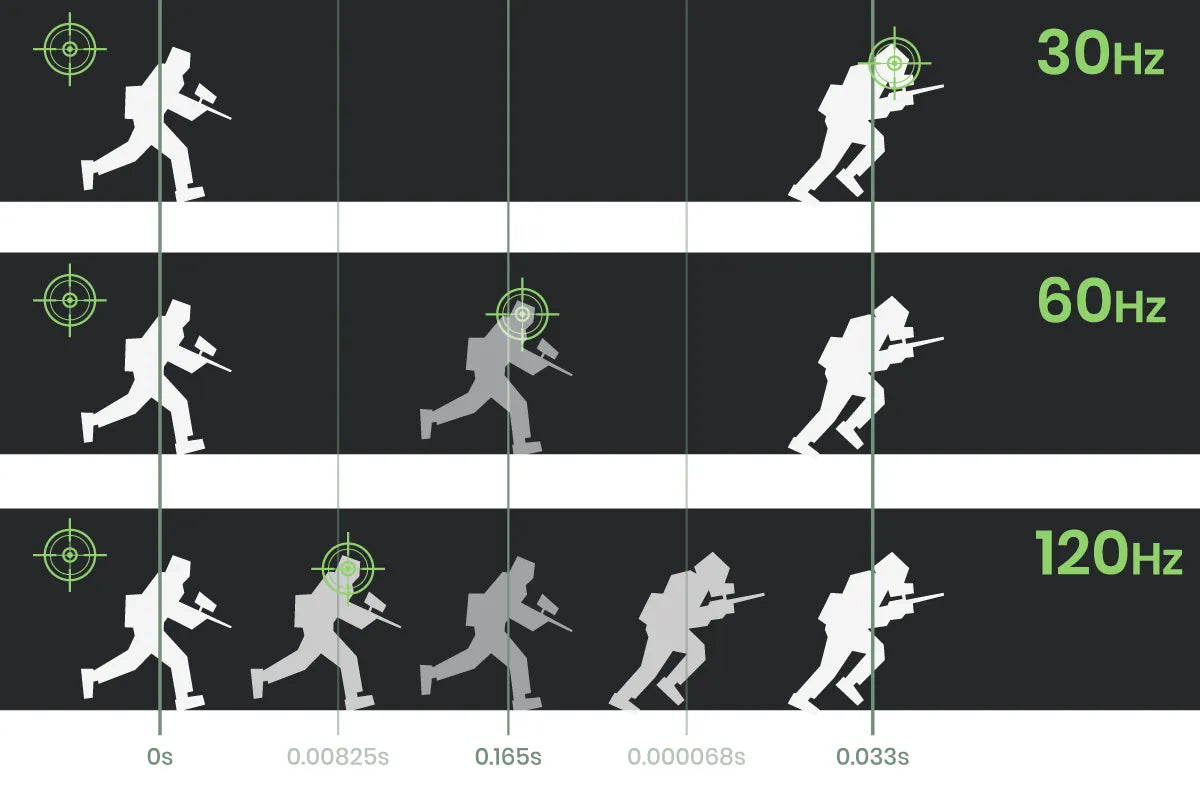
60Hz: Casual and Strategy Gaming
60Hz is sufficient for turn-based strategy, RPGs, and single-player adventures where frame pacing matters more than split-second reaction times. You can play most modern games at this rate without feeling disconnected from the action, provided your GPU can maintain a stable 60 FPS.
144Hz: The Competitive Sweet Spot
For fast-paced shooters and racing games, 144Hz is the recommended standard. The jump from 60Hz to 144Hz is the most noticeable upgrade for most gamers, significantly reducing motion blur and input lag. This tier balances performance and cost, requiring mid-range hardware to push the necessary frames.
240Hz+: Elite Competitive Play
240Hz and higher are designed for professional esports and competitive FPS players. The difference between 144Hz and 240Hz is subtle but tangible in high-stakes scenarios where every millisecond counts. Achieving this requires a powerful GPU and a monitor that can consistently output high frame rates without tearing.
| Tier | Refresh Rate | Best For | Hardware Demand |
|---|---|---|---|
| Entry | 60Hz | Casual, RPG, Strategy | Low to Mid |
| Standard | 144Hz | Shooters, Racing, MOBA | Mid to High |
| Pro | 240Hz+ | Esports, Competitive FPS | High End |
Match your GPU to the target Hz
The relationship between your graphics card and your monitor is simple: the monitor can only display what the GPU produces. If you buy a 240Hz monitor but your GPU can only push 60 frames per second (FPS) in your target game, you are paying for a feature you cannot use. The monitor will simply wait for the next frame, making the high refresh rate invisible to you.
To get the most out of the Best Refresh Rates for Gaming, your GPU must consistently hit the monitor's refresh ceiling. For a 60Hz display, you need at least 60 FPS. For 144Hz, aim for 144 FPS. For 240Hz, you need a powerful card capable of sustaining that speed in competitive shooters. If your GPU struggles to hit these numbers, you will experience stuttering or input lag, which defeats the purpose of a high-refresh display.
Start by checking the FPS benchmarks for your specific GPU in the games you play most. If your card falls short, consider lowering graphics settings to boost frame rates. This ensures your hardware matches the monitor's potential, giving you the competitive edge that high refresh rates provide.
Change refresh rate in Windows and GPU control panel
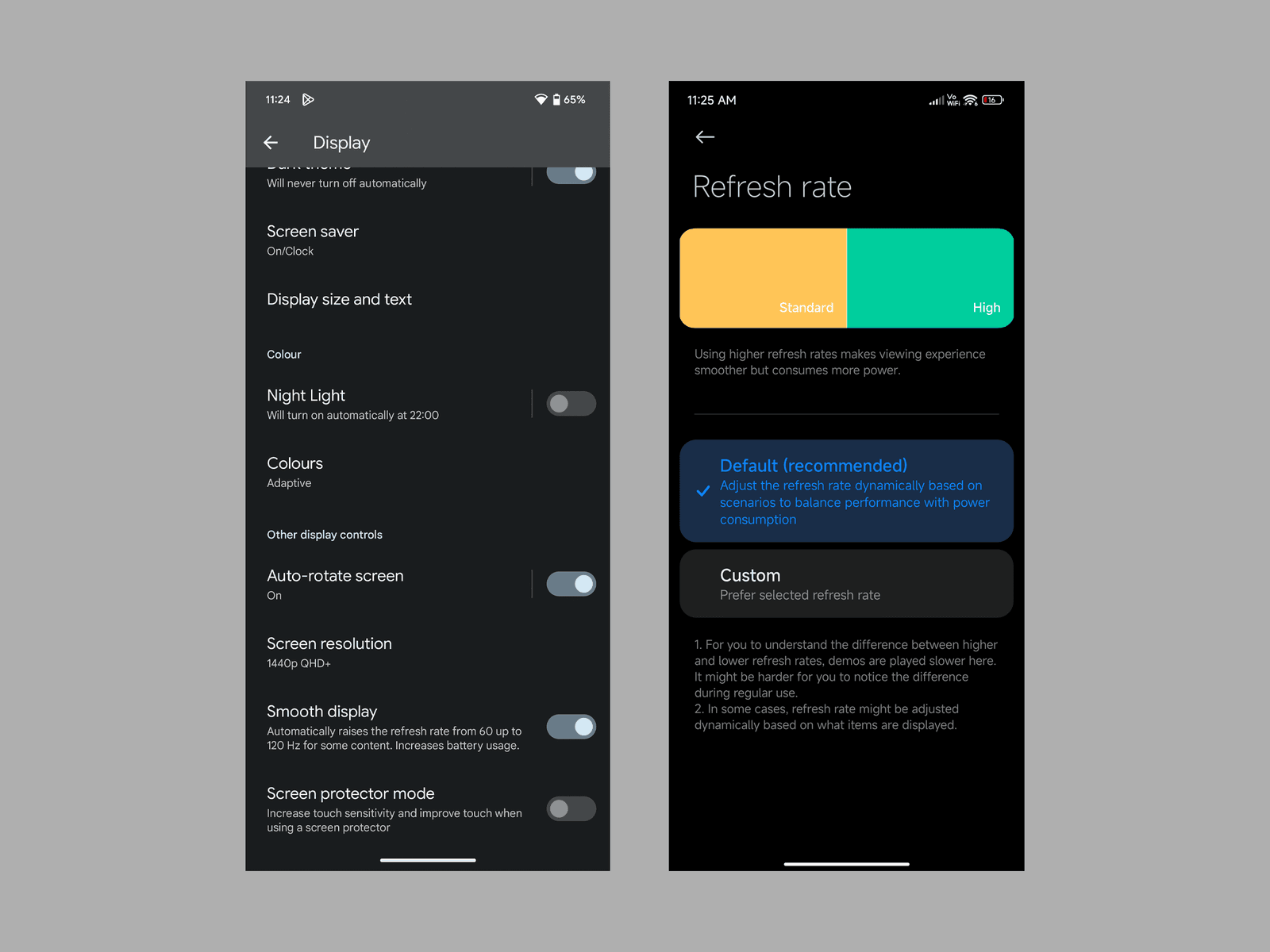
Your monitor’s hardware might support 240Hz, but the signal won’t change unless you tell Windows and your graphics card to send it. Setting the Best Refresh Rates for Gaming requires adjusting settings in two places: the operating system display settings and the GPU driver software. If one is set to 60Hz, the other will often lock to that lower number.
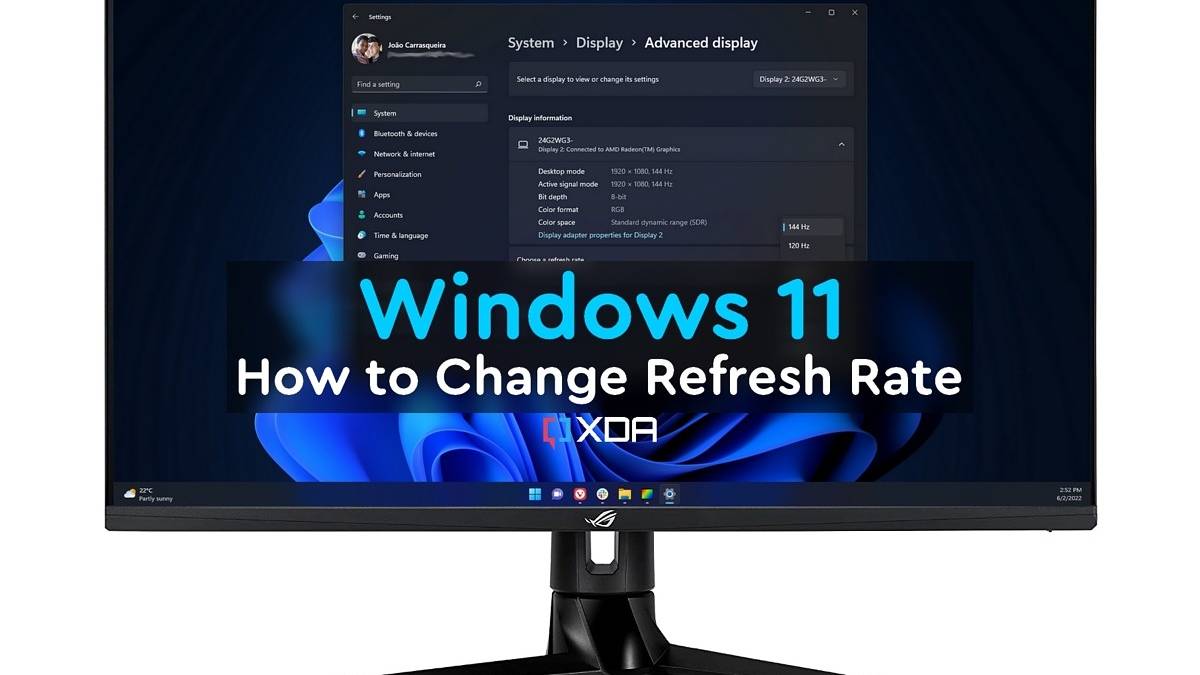
Right-click anywhere on your desktop background and select Display settings. Scroll down to the bottom of the window and click Advanced display. This page shows the current refresh rate of your primary monitor. If it says 60Hz, you need to change it.
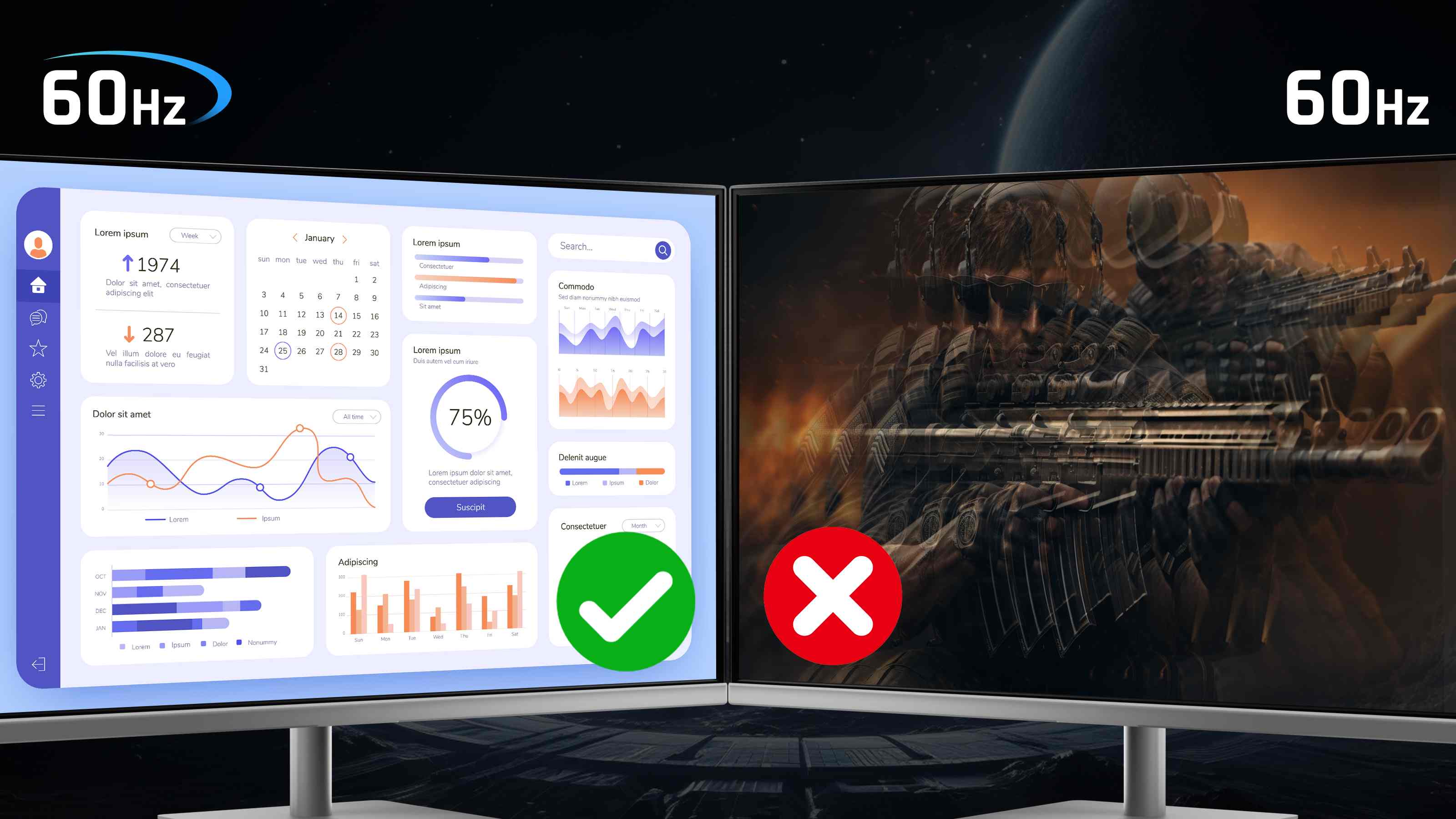
Under the "Choose a refresh rate" dropdown, select your monitor’s maximum supported rate. For competitive gaming, this is usually 144Hz or 240Hz. If you only see 60Hz, your cable might be limiting the bandwidth, or Windows hasn’t detected the monitor’s full capabilities yet.
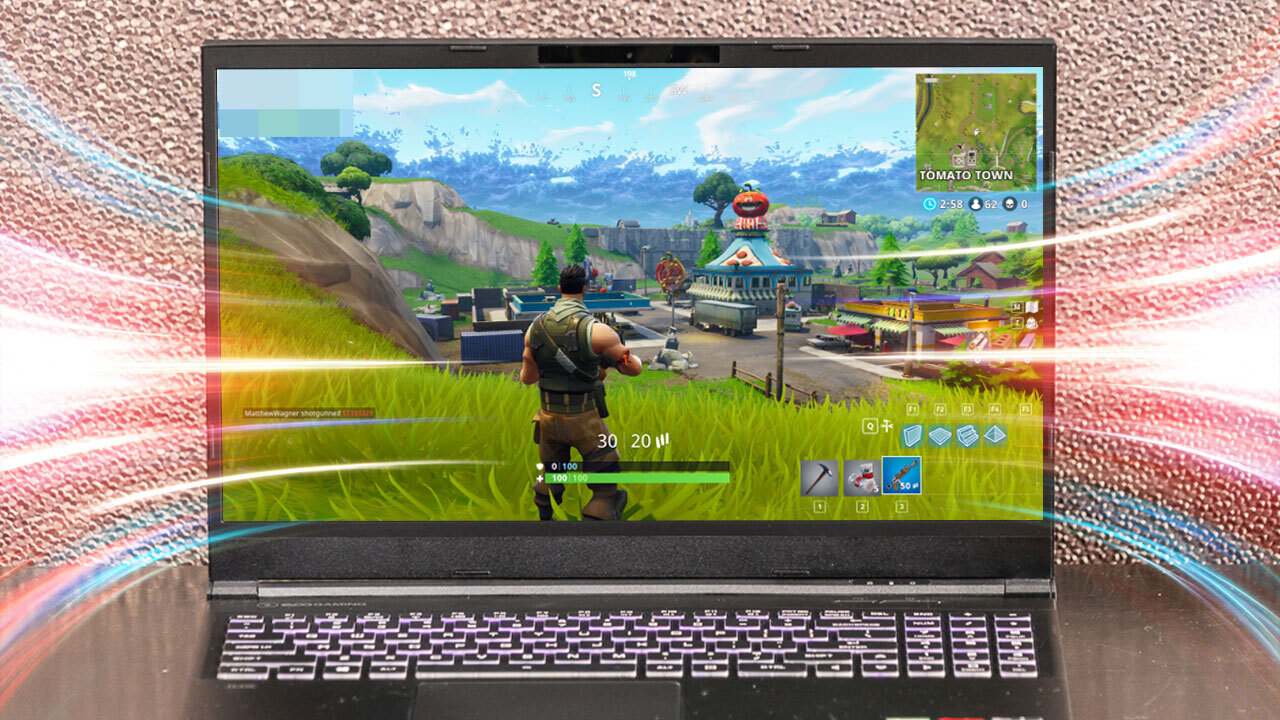
If you use an NVIDIA GPU, right-click the desktop and open NVIDIA Control Panel. Go to Display > Change resolution. Scroll to the bottom and ensure the "Output dynamic range" is set to Full. Under "Refresh rate," select the highest option available (e.g., 144Hz). Click Apply to save.
For AMD users, open the AMD Software: Adrenalin Edition. Navigate to Settings (gear icon) > Display. Look for the HDMI/DisplayPort section and ensure Maximum Performance is enabled. This forces the GPU to output the highest possible refresh rate and frame rate without capping it.
-
Verify cable supports high bandwidth (HDMI 2.0+ or DisplayPort 1.2+)
-
Confirm GPU driver is updated to latest version
-
Test with a frame counter (like MSI Afterburner) to verify actual FPS
Once these steps are complete, your system is configured to deliver the Best Refresh Rates for Gaming that your hardware can handle. If the screen flickers or goes black, revert to the previous setting and check your cable connections.
Check cables and ports for bandwidth
Your best refresh rates for gaming depend entirely on the physical connection between your PC and your monitor. A high-end 240Hz panel is useless if your cable bottleneck caps the signal at 60Hz. Most setup errors stem from using older cables or plugging into the wrong port on your graphics card.
HDMI vs. DisplayPort
DisplayPort (DP) is generally the preferred choice for PC gaming because it supports higher bandwidths and features like Adaptive Sync more reliably than HDMI. To run a monitor at 144Hz or 240Hz, you typically need DisplayPort 1.4 or newer. This version handles the necessary data throughput for high refresh rates at 1080p and 1440p resolutions without compression artifacts.
HDMI is common on consoles and some entry-level monitors, but it has stricter bandwidth limitations. To achieve 144Hz or 240Hz over HDMI, you must use an HDMI 2.1 cable and connect to an HDMI 2.1 port on your GPU. Older HDMI 2.0 ports are limited to 144Hz at 1080p or 60Hz at 1440p/4K. Always check your monitor’s specifications to see which port supports your target refresh rate.
Verify cable specifications
Not all "HDMI" or "DisplayPort" cables are created equal. Cheap or very old cables may not support the bandwidth required for high refresh rates. Look for cables labeled "High Speed" for HDMI or "VESA Certified" for DisplayPort. If you are upgrading to 240Hz, ensure both your cable and your GPU ports meet the required standard. Using an underspecified cable will force your system to drop to a lower refresh rate, negating the benefits of your expensive monitor.
Top high refresh rate monitors to buy
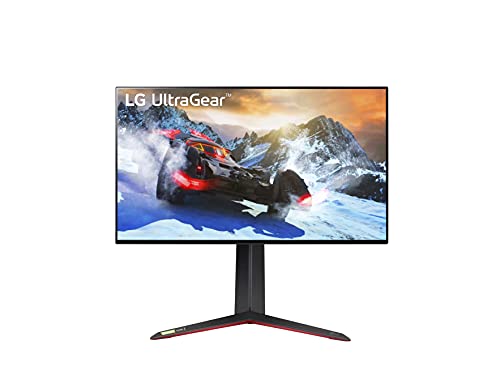
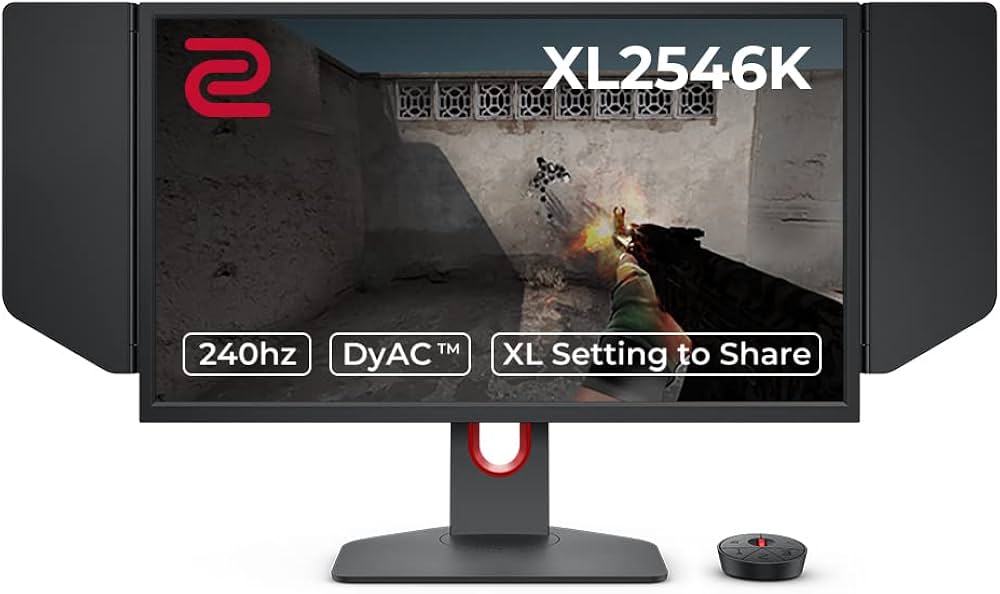
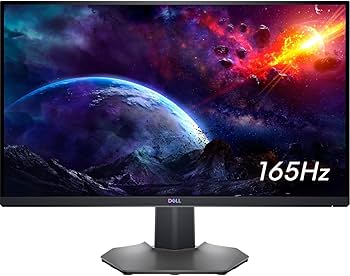
Choosing the right high refresh rate monitor depends on your budget and the games you play. A 60Hz panel is sufficient for casual play, but competitive gamers benefit significantly from 144Hz or 240Hz displays. The difference in motion clarity is like switching from a flip-book to a smooth animation; higher Hz reduces blur and input lag, giving you a tangible edge in fast-paced shooters.
For those ready to purchase, here are top-rated options across different tiers. These monitors deliver the smoothness needed for serious gaming without unnecessary premium costs.

As an Amazon Associate, we may earn from qualifying purchases.
Frequently asked questions about refresh rates
Understanding the technical differences between 60Hz, 144Hz, and 240Hz helps you choose the right monitor for your specific gaming needs. Here are the most common questions gamers ask when upgrading their setup.
No comments yet. Be the first to share your thoughts!