
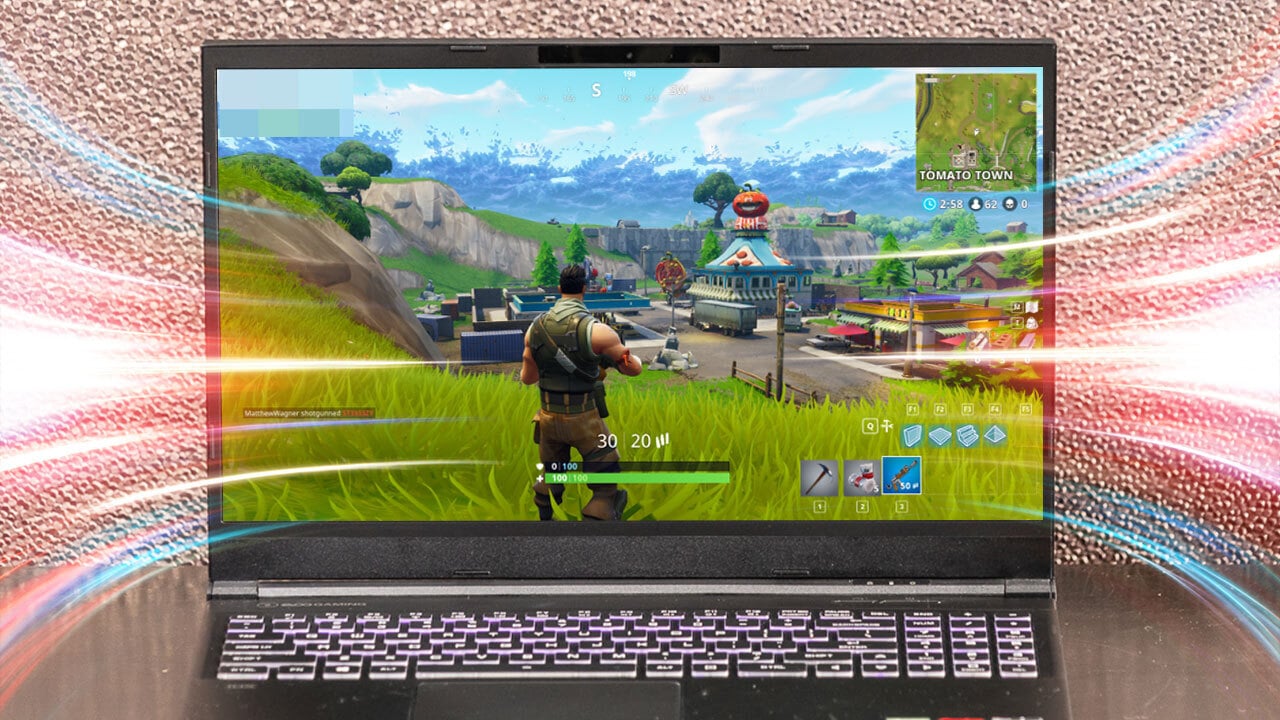

Match refresh rate to your game type
Choosing the right refresh rate starts with identifying the genre you play most often. A 60Hz monitor handles casual titles well, but fast-paced shooters demand higher speeds to stay competitive. Matching the hardware to your playstyle prevents overspending on specs you won't use.
60Hz: The Standard Baseline
Sixty hertz remains the default for single-player adventures, strategy games, and RPGs. In these titles, frame pacing and visual fidelity matter more than instantaneous reaction times. You will not notice the lack of smoothness during slow-paced exploration or turn-based combat. This tier is sufficient for casual gaming sessions where immersion takes priority over speed.
144Hz: The Competitive Sweet Spot
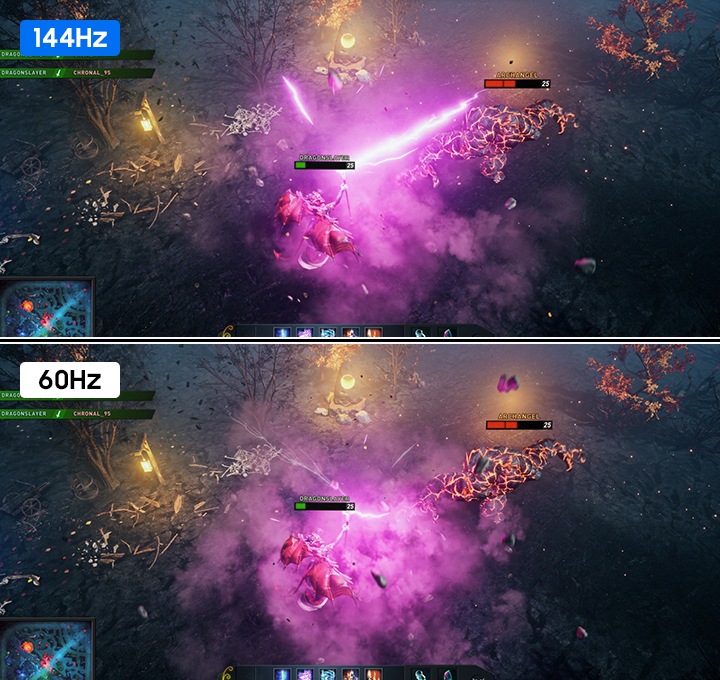
For most gamers, 144Hz offers the best balance between performance and price. Fast-paced genres like battle royales and tactical shooters benefit significantly from the increased fluidity. The reduced motion blur helps track moving targets, giving you a tangible edge in split-second engagements. Most modern graphics cards can sustain high frame rates at this level without breaking the bank.
240Hz+: For Pro-Level Precision
Professional esports athletes and hardcore competitors often push for 240Hz or higher. At this speed, every millisecond counts, and the visual clarity allows for ultra-precise aiming. However, the visual difference between 144Hz and 240Hz is subtle for the average player. Unless you are training for tournaments, the diminishing returns may not justify the premium cost.
| Refresh Rate | Best For | Visual Smoothness | Typical Cost |
|---|---|---|---|
| 60Hz | Casual, RPGs, Strategy | Standard | $ |
| 144Hz | Competitive Shooters, MOBA | High | $$ |
| 240Hz+ | Pro Esports, Tactical FPS | Ultra | $$$ |
Check your GPU can sustain the frame rate
A high refresh rate monitor is only as good as the frames your graphics card can push to it. If your GPU cannot maintain a frame rate that matches or exceeds the monitor’s refresh rate, you will experience stuttering, screen tearing, or wasted potential. The goal is to ensure your hardware can actually output enough frames to utilize the monitor's potential.
Understand the FPS vs. Hz relationship
Think of your monitor’s refresh rate (measured in Hertz, or Hz) as a bucket that catches water, and your GPU’s frame rate (measured in Frames Per Second, or FPS) as the tap filling it. If the bucket holds 144 liters per second (144Hz) but the tap only drips 60 liters per second (60 FPS), the bucket remains largely empty. You are paying for capacity you aren't using. Conversely, if the tap floods the bucket at 200 FPS but the bucket can only hold 144, the excess frames are discarded, though the experience remains smooth.
For competitive gaming, aim for your FPS to consistently match the monitor’s maximum Hz. For single-player or narrative-driven games, maintaining FPS above 60 is generally sufficient for a smooth experience, even on a 144Hz display, as motion blur and complex visuals often prevent consistent high frame rates.
Test with real-world benchmarks
Don’t rely on synthetic benchmarks like 3DMark alone; they measure peak capability under ideal conditions. Instead, run the specific game you intend to play at your target resolution and graphics settings. Use the in-game benchmark tool or record a 30-second gameplay segment to check average FPS and 1% lows (the lowest frames per second encountered).
If your average FPS drops significantly below your monitor’s refresh rate during intense scenes, you have two options:
- Lower graphical settings: Reduce shadows, anti-aliasing, or resolution to boost FPS. This is the most effective way to gain smoothness.
- Accept the mismatch: If lowering settings isn’t an option, consider that your monitor’s high refresh rate may not be fully utilized in that specific title. This is common in graphically intensive AAA games.
Use frame rate counters for visibility
Enable an on-screen display (OSD) or overlay tool to monitor your FPS in real time. NVIDIA GeForce Experience, AMD Radeon Software, and MSI Afterburner all provide lightweight overlays. Watching the numbers fluctuate helps you identify which settings cause the biggest drops, allowing you to make informed trade-offs between visual fidelity and smoothness.
Enable high refresh mode in display settings
Most monitors ship with their refresh rate set to 60Hz by default, even if the hardware supports 144Hz, 240Hz, or higher. To get the smooth motion you paid for, you need to manually change this setting in your operating system and GPU control panel.
Step 1: Change Windows Display Settings
Start with the operating system. Windows often defaults to a safe, low refresh rate to ensure compatibility.
- Right-click anywhere on your desktop and select Display settings.
- Scroll down and click Advanced display (or Advanced display settings).
- Under Choose a refresh rate, open the dropdown menu.
- Select the highest number available (e.g., 144Hz, 165Hz, 240Hz).
- Click Keep changes when the preview screen asks for confirmation.
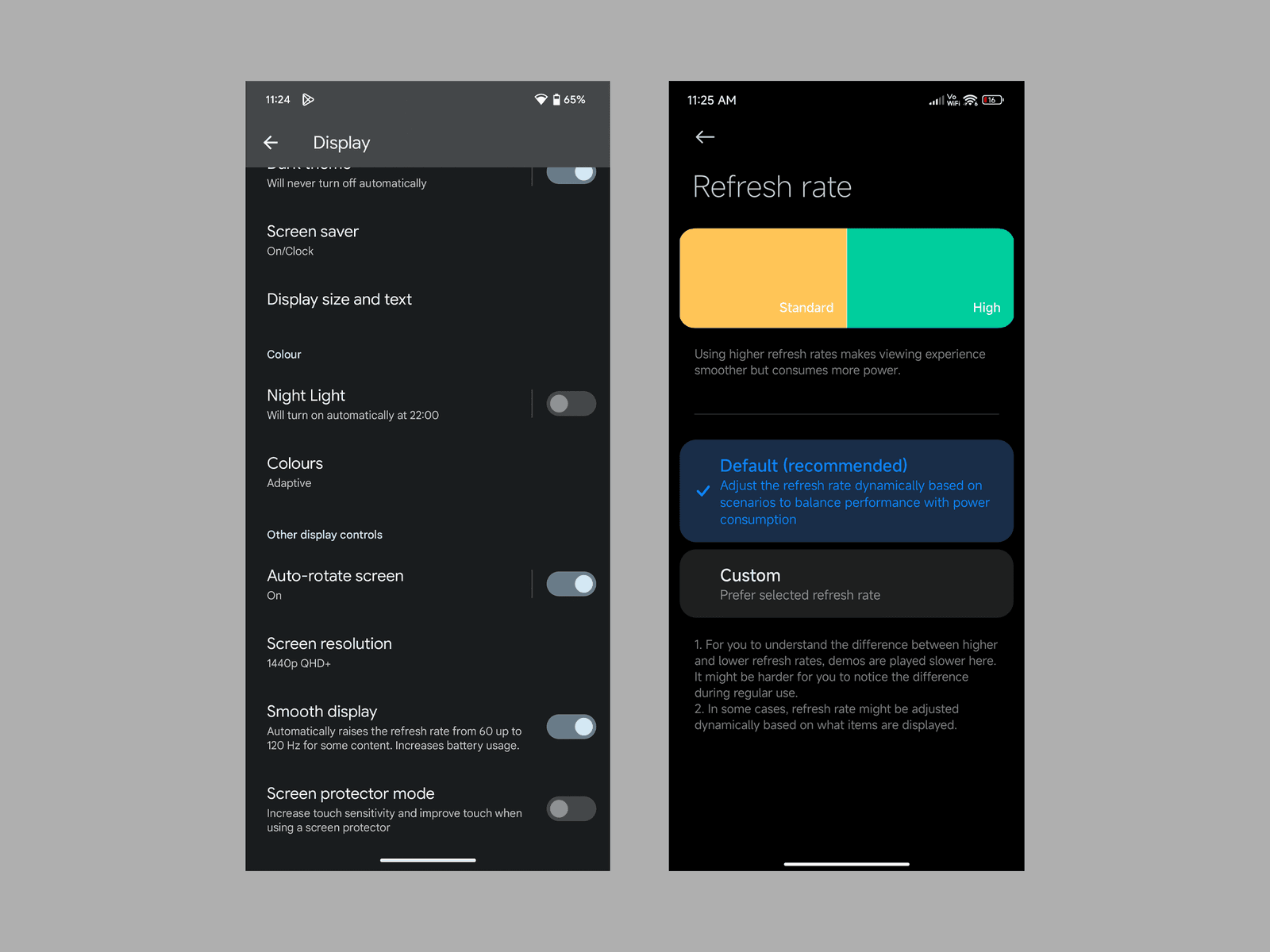
Right-click your desktop and select Display settings. Navigate to Advanced display at the bottom of the window to find the refresh rate dropdown.
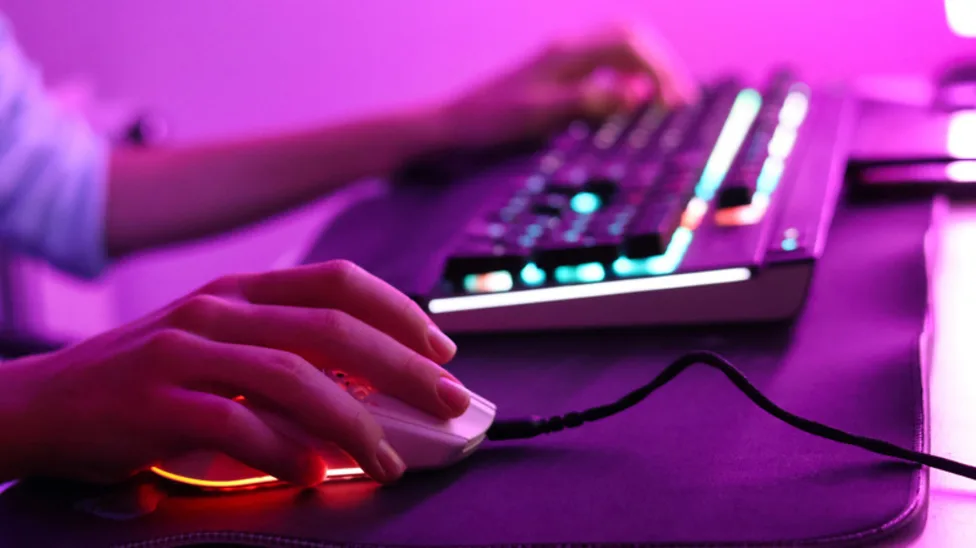
Open the Choose a refresh rate dropdown. If you see options like 120Hz or 144Hz, select the highest number. Click Keep changes to confirm.
Right-click the desktop and open the NVIDIA Control Panel. Go to Change resolution under Display. Scroll to the bottom and select your monitor’s maximum refresh rate from the list.
Open the AMD Software: Adrenalin Edition. Navigate to Display settings. Ensure Display Refresh Rate is set to the highest available option, not "Recommended" or 60Hz.
Open a fast-paced game or a refresh rate test website. If the motion looks smooth and the in-game stats match your monitor’s specs, you are set.
Step 2: Configure GPU Control Panel
Even if Windows is set correctly, your GPU driver might override it. You need to ensure the graphics card is sending the signal at the full rate.
For NVIDIA Users:
- Right-click the desktop and open the NVIDIA Control Panel.
- Under the Display section, click Change resolution.
- Scroll to the bottom of the page to the Refresh rate dropdown.
- Select the highest available option (e.g., 144Hz). Do not leave it on "Recommended."
For AMD Users:
- Open the AMD Software: Adrenalin Edition.
- Click the Gear icon for settings, then select Display.
- Find Display Refresh Rate and set it to the maximum available.
Step 3: Check Your Cables and Ports
If the highest refresh rate is missing from your dropdown list, the bottleneck is likely your connection. Standard HDMI cables and older ports often cap out at 60Hz for high resolutions.
- Use DisplayPort: This is the most reliable way to hit 144Hz+ at 1080p or 1440p.
- Check HDMI Versions: If you must use HDMI, ensure you are using an HDMI 2.0 or higher cable and that your GPU/monitor port supports it.
- Avoid Adapters: Direct connections are best. Adapters can introduce latency or signal loss that forces the system back to 60Hz.
Verify cable bandwidth supports the speed
Your monitor and GPU might both support 240Hz, but the connection between them could bottleneck the signal. Cables have strict bandwidth limits that determine the maximum resolution and refresh rate they can carry without dropping frames or causing flickering. Choosing the wrong cable is the most common reason a high-end setup feels sluggish.
DisplayPort is generally the preferred choice for PC gaming because it supports higher bandwidths and Adaptive Sync technologies like FreeSync and G-Sync more reliably than HDMI. For example, a DisplayPort 1.4 connection can easily handle 4K at 144Hz with DSC (Display Stream Compression), whereas HDMI 2.0 is capped at 4K 60Hz.
If you are using a console like the PlayStation 5 or Xbox Series X, HDMI 2.1 is essential for 4K 120Hz gaming. Always check the certification on the cable packaging. "High Speed" HDMI cables are only rated for HDMI 2.0. Look for "Ultra High Speed" HDMI cables to ensure they meet the HDMI 2.1 specification.
Before buying a new cable, check the version printed on the connector or the cable jacket. If you are unsure, test the current connection at your target refresh rate in your display settings. If the option is grayed out or the screen flickers, the cable is likely the limiting factor.
Pick the right monitor for your budget
Your budget dictates the panel technology you can access, which directly impacts image quality and response time. High refresh rate monitors for gaming generally fall into three tiers, each offering distinct advantages for different types of play.
Budget Tier: 1080p IPS at 144Hz–165Hz
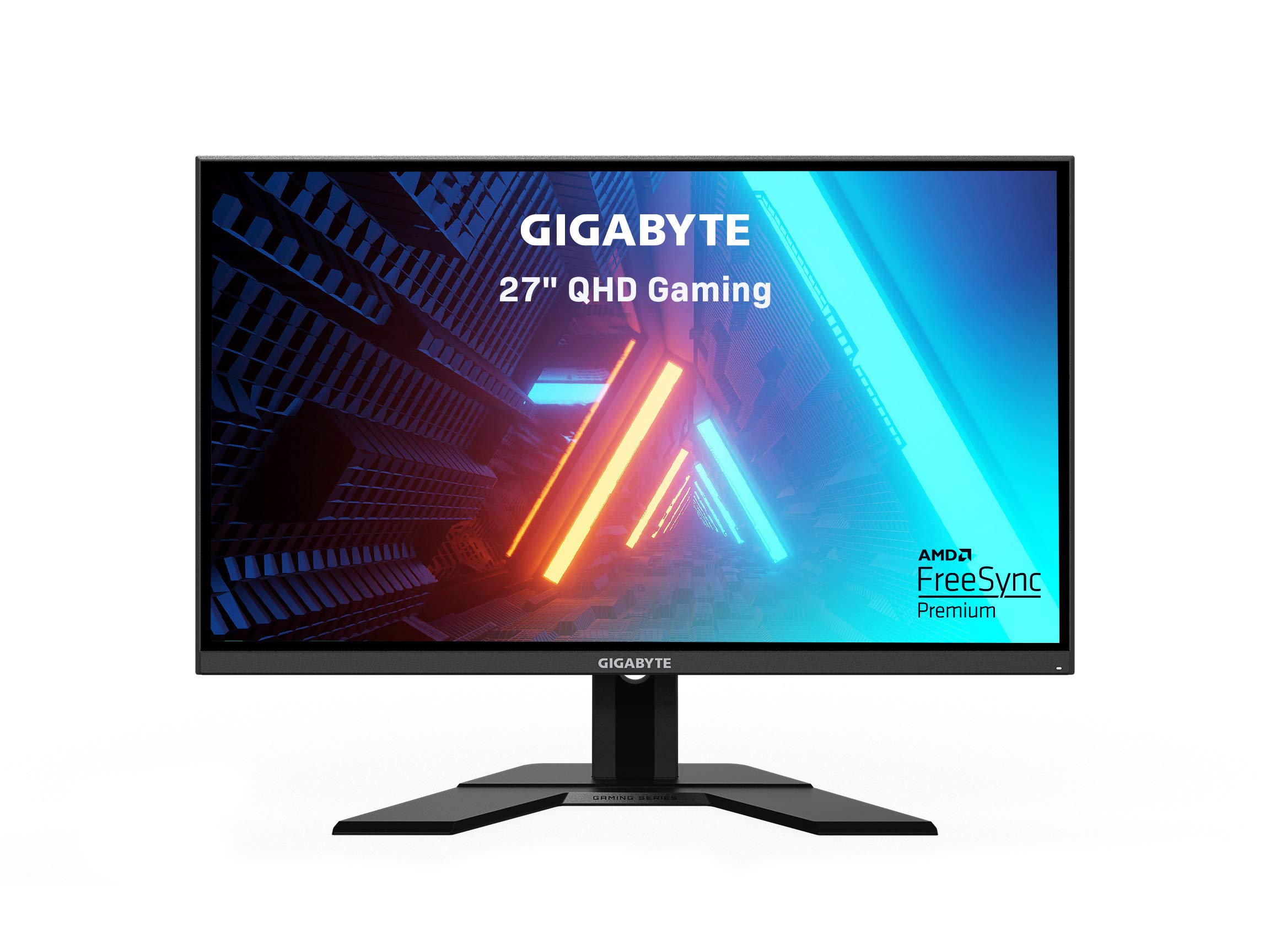
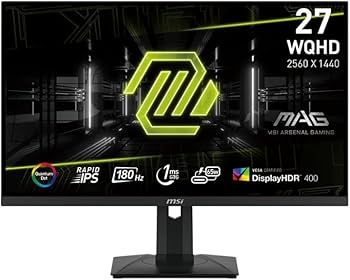
For most gamers, the sweet spot is a 1080p IPS panel running at 144Hz or 165Hz. This combination offers the best balance of smoothness and color accuracy without breaking the bank. IPS panels provide wide viewing angles and vibrant colors, making them suitable for both competitive shooters and single-player adventures. At this price point, you can find reliable options from brands like MSI and Gigabyte that deliver consistent performance.
Mid-Range Tier: 1440p IPS at 144Hz–180Hz
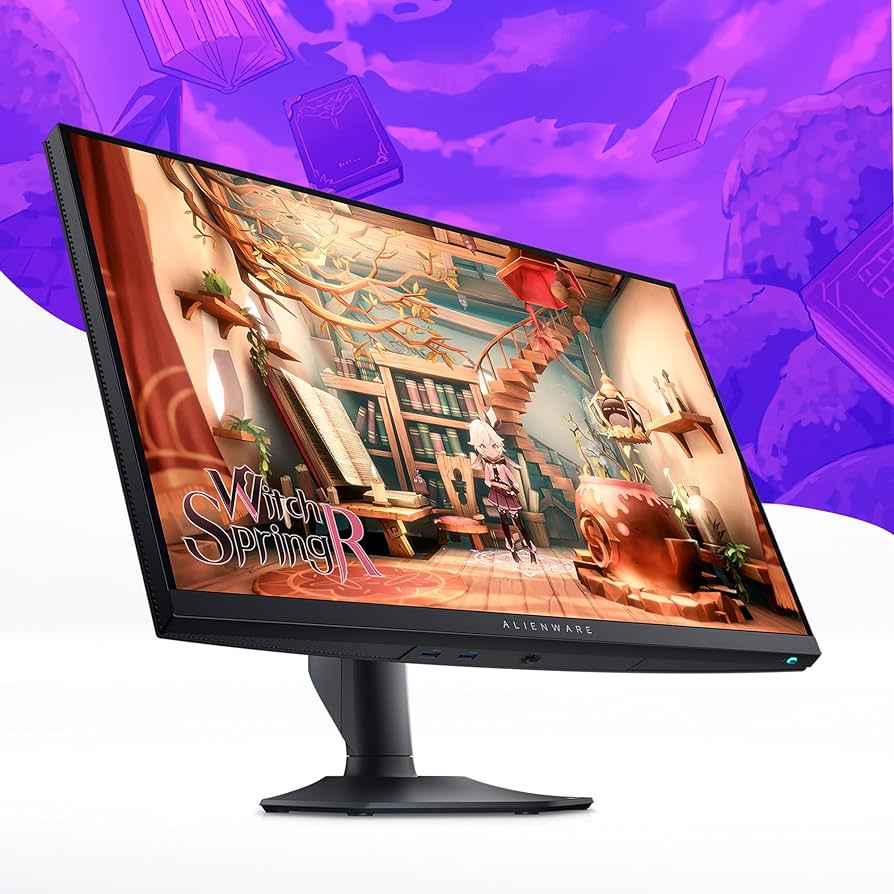
If your graphics card can handle it, 1440p (QHD) is the recommended resolution for 2026. It offers a significant clarity boost over 1080p while remaining less demanding on hardware than 4K. A 1440p IPS monitor with a refresh rate of 144Hz to 180Hz provides a sharp, smooth experience for strategy games, RPGs, and fast-paced shooters. This tier often includes better build quality and more connectivity options, such as USB-C hubs or multiple DisplayPort inputs.
Premium Tier: OLED and Mini-LED
For those who prioritize visual fidelity above all else, OLED and Mini-LED panels offer superior contrast and response times. OLED monitors, such as the ASUS ROG Swift OLED PG27AQWP-W, provide perfect blacks and near-instant pixel response, eliminating motion blur entirely. Mini-LED panels offer high brightness and good contrast at a lower price than OLED. These panels are ideal for immersive single-player games and content creation, though they come at a significantly higher cost.


As an Amazon Associate, we may earn from qualifying purchases.
Common questions about gaming refresh rates
Higher refresh rates do more than just make menus look smoother; they directly reduce input lag. This gap between your mouse movement and what appears on screen shrinks as the monitor updates more frequently. For competitive shooters, that fraction of a second can determine whether you land the shot.
Diminishing returns are real. The jump from 60Hz to 144Hz is dramatic and immediately noticeable. Moving from 240Hz to 360Hz is much subtler. Most gamers find 144Hz or 165Hz to be the sweet spot where performance gains meet practical value. Only serious esports competitors usually benefit from pushing beyond 240Hz.
Eye strain often decreases with higher refresh rates. Flicker and motion blur can cause fatigue during long sessions. A 120Hz or 144Hz monitor provides a steadier image, reducing the effort your eyes make to track fast-moving objects. However, ensure your GPU can maintain stable frame rates to avoid stuttering, which can worsen discomfort.
No comments yet. Be the first to share your thoughts!