

The refresh rate challenge
AI-powered games and virtual reality are demanding more than ever from our displays. It used to be simple: higher refresh rates generally meant a smoother, more responsive experience. Now, with increasingly complex visuals and the processing power required for artificial intelligence algorithms running within games, that equation is changing. We’re quickly approaching a point where simply pushing for higher Hertz isn’t enough to deliver a truly compelling experience.
G-Sync and FreeSync solved screen tearing by syncing the display to the GPU. That's still useful, but tearing is just a symptom. These tools don't handle the massive volume of data AI-driven games throw at a screen, nor do they account for the specific timing VR needs to feel real.
The rise of AI in gaming isn’t just about prettier graphics, it’s about dynamic, procedurally generated content, and physics simulations that require incredibly precise timing. VR, meanwhile, demands consistently high frame rates to avoid motion sickness and maintain a sense of presence. These scenarios require a much more nuanced approach to refresh rate optimization than simply selecting the highest number your monitor supports. We need to think beyond Hertz and consider what’s actually happening between the frames.
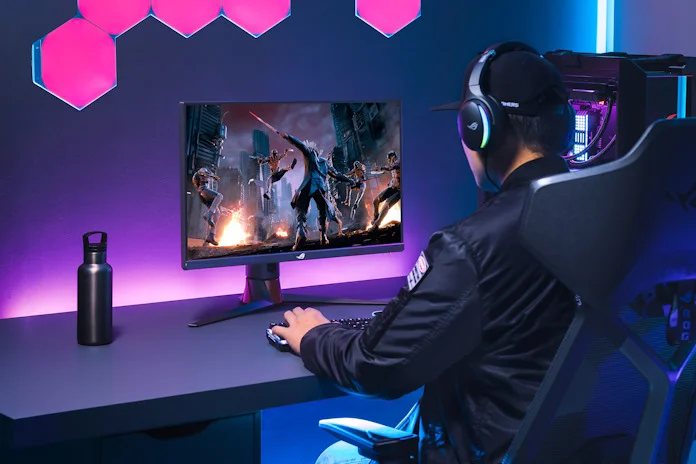
Why persistence matters more than hertz
Refresh rate tells you how many times per second your display updates the image, but it doesn’t tell the whole story. Display persistence – how long a pixel remains lit – is equally important, and often overlooked. A high refresh rate with slow persistence can result in a blurry image, especially during fast motion. Think of it like a series of still images flashed quickly: if each image lingers too long, you'll see motion blur.
Techniques like strobe lighting and backlight strobing attempt to reduce persistence by briefly turning the backlight off between frames. This creates a sharper image, but can also reduce brightness. The effectiveness of these techniques varies greatly depending on the display technology and implementation. Some monitors do a better job than others at minimizing the drawbacks while maximizing the benefits.
Low persistence is absolutely critical for minimizing motion blur in fast-paced AI games and VR experiences. When an AI is rapidly calculating new actions and the game is responding accordingly, or when you’re whipping your head around in VR, every millisecond counts. A display that can’t keep up with the speed of the action will result in a washed-out, blurry image that detracts from the experience.
Frame generation adds new complexity
NVIDIA DLSS 3 Frame Generation and AMD FSR 3 are changing the game, literally. These technologies create entirely new frames between those rendered by your GPU, effectively increasing your frame rate without requiring more processing power. Sounds great, right? It can be, but it introduces new complexities when it comes to refresh rate optimization.
The core issue is synchronization. If the generated frames aren’t perfectly aligned with the display’s refresh rate, you can experience artifacts like stuttering or ghosting. It's not enough for your GPU to be outputting a higher frame rate; the display needs to be able to handle the variability introduced by these generated frames. This is where variable refresh rate technologies become even more important, but even they can struggle with the timing complexities.
There's also the question of latency. Generating frames takes time, and that time adds to the overall input lag. While DLSS 3 and FSR 3 aim to minimize this latency, it’s still a factor to consider, especially in competitive gaming scenarios. It’s a trade-off: higher frame rates versus potentially increased input lag. The ideal setup will need to carefully balance these factors.
I've seen instances where improperly configured frame generation can actually worsen the visual experience. The goal is to create a smoother, more fluid image, but if the synchronization is off, you end up with a jarring, unnatural feeling. It's crucial to experiment with different settings and monitor your results closely.
VR’s Unique Refresh Rate Demands
Virtual reality has particularly strict refresh rate requirements. Unlike traditional gaming, where you’re looking at a flat screen, VR places a display directly in front of your eyes, filling your entire field of view. This makes you much more sensitive to any visual imperfections, including low frame rates and high latency.
The link between refresh rate, latency, and motion sickness is well-established. If the display doesn’t update quickly enough, or if there’s a noticeable delay between your head movements and the corresponding changes in the virtual world, your brain can become confused, leading to nausea and discomfort. A consistently high frame rate is essential for maintaining immersion and preventing these negative side effects.
Aim for 90Hz at a minimum, though 120Hz is the real sweet spot for comfort. If your GPU dips, reprojection can fake the extra frames, but it often leaves shimmering artifacts. Foveated rendering helps by only sharpening the spot you're looking at, though it's useless without fast eye-tracking. By 2026, these targets will likely shift higher as headsets get more demanding.
Dialing in your monitor settings
Check your overdrive settings first. These speed up pixel response to cut down on ghosting, but if you push them too far, you'll see dark trails known as inverse ghosting. It's a balancing act. Most mid-range monitors have a 'Fast' or 'Faster' setting that works better than the 'Extreme' preset.
Color accuracy is also important, especially if you want a visually immersive experience. Calibrating your monitor using a colorimeter is the best way to ensure accurate colors, but you can also use built-in calibration tools or online resources. Black equalization can help improve visibility in dark scenes, but be careful not to overdo it, as it can wash out the image.
Pay close attention to response time. Lower response times generally lead to less motion blur, but they can also be more expensive. Look for monitors with a response time of 1ms or less, if possible. Be wary of manufacturers' claims about response time, as they can sometimes be misleading. Independent reviews are a good source of reliable information.
Identifying and addressing display artifacts is key. Ghosting appears as a trailing image behind moving objects, while inverse ghosting appears as a dark trail. Experiment with different overdrive settings to minimize these artifacts. If you're still experiencing problems, try a different cable or monitor.
Fixing common refresh rate problems
Incorrect refresh rate settings in Windows are a common cause of problems. Make sure you’ve selected the correct refresh rate for your monitor in the display settings. Driver conflicts can also cause issues, so try updating your graphics drivers to the latest version. Sometimes, rolling back to an older driver can resolve compatibility problems.
Cable problems are another frequent culprit. DisplayPort is generally the preferred connection for high refresh rates, but HDMI 2.1 can also support high refresh rates and resolutions. Make sure you’re using a high-quality cable that’s certified for the connection type. A faulty cable can cause flickering, dropped frames, or even a complete loss of signal.
Sometimes the card is just too slow. If your GPU can't keep up, you have to drop the resolution or upgrade the hardware. There's no software trick that fixes a lack of raw horsepower.
If you're still experiencing problems, try disconnecting all external devices except for your monitor, keyboard, and mouse. This can help isolate the issue. You can also try running a display diagnostic tool to check for hardware problems.
Troubleshooting Refresh Rate Issues in AI Gaming & VR (2026)
| Problem | Possible Causes | Solutions | Likelihood of Occurrence |
|---|---|---|---|
| Blank Screen | Incorrect or Damaged Cable | Try a different DisplayPort or HDMI cable. Ensure the cable is certified for the desired resolution and refresh rate. | Common |
| Blank Screen | GPU Driver Issue | Update to the latest GPU drivers. Consider a clean driver installation to resolve conflicts. | Common |
| Blank Screen | Monitor Malfunction | Contact monitor support for repair or replacement. Test with another device to confirm. | Less Common |
| Stuttering/Lag | Insufficient GPU Power | Reduce in-game graphics settings. Upgrade GPU if necessary. | Common |
| Stuttering/Lag | Incorrect Refresh Rate Setting | Verify the refresh rate is set correctly in both Windows display settings and the game itself. | Common |
| Screen Tearing | VSync Disabled | Enable VSync in game settings or GPU control panel. Consider Adaptive Sync technologies (G-Sync or FreeSync). | Common |
| Low Frame Rates | AI Upscaling Settings | Experiment with different AI upscaling methods (if available) and quality settings to balance performance and visual fidelity. | Increasingly Common |
| Visual Artifacts | Overclocking Instability | Reduce monitor overclock settings or revert to default settings. | Less Common |
Illustrative comparison based on the article research brief. Verify current pricing, limits, and product details in the official docs before relying on it.
No comments yet. Be the first to share your thoughts!