

Understanding the Importance of Refresh Rates
Ever wondered why your favorite action-packed game seems a bit off on your laptop? Or why that high-definition video doesn't quite deliver the smoothness you expected? The culprit might be lurking in a place you've overlooked: your laptop's refresh rate. Understanding refresh rates is the first step towards unlocking the full potential of your laptop.
Imagine your laptop screen as a canvas, and the images you see as a series of rapid brush strokes. Each stroke represents a 'frame', and the speed at which these frames are painted is the 'refresh rate'. Measured in hertz (Hz), the refresh rate is the number of times your screen updates with new images each second. The higher the refresh rate, the smoother and more fluid the on-screen motion appears.
So, why should you care about this? Well, a higher refresh rate can significantly enhance your viewing and gaming experience. It can make your games feel more immersive, your videos more lifelike, and even reduce eye strain during long hours of screen time. If you're looking to increase laptop refresh rate, you're on the right path to optimize your screen's performance.
But how do you increase hz on laptop? Or specifically, how do you increase refresh rate on laptop windows 10? This comprehensive guide will walk you through the steps, from understanding the importance of refresh rates to troubleshooting common issues. So, ready to dive in and optimize your screen refresh rate? Let's get started!
Understanding the Basics: What is Refresh Rate?
Imagine being in the heat of a high-stakes gaming session, your fingers flying across the keyboard, your eyes darting across the screen. Suddenly, the action stutters, the images blur, and your immersion is shattered. What's the culprit? It could be your laptop's refresh rate. But what is a refresh rate, and why is it so crucial to your digital experience? Let's delve into the basics.
Refresh rate, in simplest terms, is the number of times your screen updates with new images each second. It's measured in hertz (Hz), and a higher refresh rate means smoother, more fluid visuals. Whether you're gaming, streaming, or even scrolling through a webpage, your refresh rate plays a pivotal role in your screen's performance.
But how does this tie into your quest to increase laptop refresh rate or optimize screen refresh rate? Well, understanding the concept of refresh rate is the first step towards enhancing your laptop's visual capabilities. It's the foundation upon which you can begin to explore more complex topics like refresh rate vs fps and motion rate vs refresh rate.
As we journey through this comprehensive guide, we'll not only learn how to increase hz on laptop and how to increase refresh rate on laptop windows 10, but also discover the best refresh rates for gaming. We'll also delve into how to change refresh rate, ensuring your laptop performs at its peak, offering you the best possible visual experience.
So, are you ready to unlock the full potential of your laptop and elevate your digital experience to new heights? Let's dive in!
Understanding the Importance of Refresh Rate
Imagine you're in the middle of an intense gaming session, your fingers are flying over the keys, your focus is unwavering, but suddenly, your screen starts to stutter. The smooth flow of images is disrupted, pulling you out of your immersive experience. This is where understanding the importance of refresh rate comes into play.
The refresh rate of your laptop, measured in hertz (Hz), is essentially the number of times your screen updates with new images each second. A higher refresh rate translates to smoother, more fluid visuals, reducing strain on your eyes and enhancing your overall viewing or gaming experience. Whether you're a gamer seeking to optimize your screen for high-speed action, a graphic designer needing precision, or a movie enthusiast craving cinematic smoothness, learning how to increase your laptop's refresh rate, or change monitor Hz, can significantly improve your screen's performance.
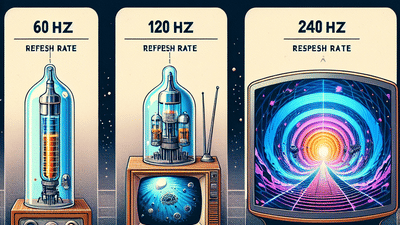
But why should you care about refresh rates? Well, consider this: a film shown at a cinema is typically projected at 24Hz. Your laptop, on the other hand, likely has a refresh rate of 60Hz. This means it's refreshing the screen more than twice as often, providing a much smoother visual experience. Now, imagine being able to increase laptop refresh rate even further, to 120Hz or even 144Hz. The difference is like night and day, with fast-paced action appearing incredibly smooth and lifelike.
So, are you ready to unlock the full potential of your laptop and optimize screen refresh rate? Stick around as we delve deeper into how to change refresh rates on monitors, adjust monitor Hz, and even guide you on how to change your monitor to 144Hz for the ultimate gaming experience.
Stay tuned, because we're about to embark on a journey that will transform your screen from ordinary to extraordinary!
Understanding the Importance of Laptop Refresh Rates
Imagine sitting in front of your laptop, engrossed in an intense gaming session or watching a high-definition movie, only to be disrupted by a choppy, lagging screen. Frustrating, isn't it? This is where understanding the importance of laptop refresh rates comes into play. Refresh rates, measured in Hertz (Hz), dictate how often your screen updates with new information. A higher refresh rate means smoother, more fluid visuals, enhancing your overall digital experience.
Whether you're a gamer seeking to increase laptop refresh rate for a competitive edge, a graphic designer craving for more accurate visuals, or a casual user aiming for a smoother browsing experience, adjusting your monitor Hz can make a world of difference. But how exactly does this work? And why is it so crucial?
Think of your laptop screen as a canvas being painted by your computer. A higher refresh rate allows the computer to paint this canvas more frequently, resulting in smoother transitions and less motion blur. This is particularly important in fast-paced scenarios, like playing video games or watching action-packed movies. A higher refresh rate can also reduce eye strain, making it more comfortable to use your laptop for extended periods.
So, ready to dive in and learn how to change monitor refresh rates, adjust monitor Hz, or even transition from a standard 60Hz to a smoother 120Hz or a super-smooth 144Hz? Whether you're using Windows 10 or another operating system, we've got you covered. Let's unlock the full potential of your laptop together!
Understanding the Importance of Refresh Rate in Laptops
Imagine a world where your laptop's display is as smooth as a hot knife through butter, where every motion on the screen is rendered with such precision and fluidity that it feels like you're looking through a window rather than at a screen. This is the power of a high refresh rate, and it's a game-changer for everything from gaming to video editing. But what exactly is a refresh rate, and why is it so important?
The refresh rate, measured in hertz (Hz), is the number of times your screen updates with new images each second. A higher refresh rate means smoother, more fluid visuals, which can make a world of difference whether you're battling enemies in a fast-paced video game or scrubbing through footage in a video editing software. It's like the difference between watching a flipbook and a high-definition movie.
But how can you tap into this potential? How can you increase your laptop's refresh rate, adjust your monitor's Hz, or change your monitor's Hz in Windows 10? And what difference would it make if you could change your monitor to 144Hz? These are the questions we'll be exploring in this comprehensive guide.
By the end of this journey, you'll not only understand the importance of refresh rates in laptops, but you'll also have the knowledge and tools to optimize your own laptop's refresh rate. So, are you ready to unlock the full potential of your laptop's display? Let's dive in.
Step-by-Step Guide to Increasing Your Laptop's Refresh Rate
Now that we've established the importance of a high refresh rate, let's delve into the exciting part: how to increase your laptop's refresh rate. Imagine the thrill of seeing your favorite games come to life with unprecedented smoothness, or the satisfaction of editing videos with an ease you've never experienced before. This is what a higher refresh rate can bring, and we're here to guide you through the process of unlocking this potential.
First, you'll need to access your display settings. Right-click on your desktop and select 'Display settings' from the drop-down menu. Scroll down and click on 'Advanced display settings'. Here, you'll see your current refresh rate listed under 'Refresh rate (Hz)'. But we're not here to admire the status quo, are we? Let's shake things up a bit.
Click on 'Display adapter properties for Display 1'. A new window will open. Navigate to the 'Monitor' tab, and you'll see a drop-down menu under 'Monitor Settings'. This is where the magic happens. This is where you can change your monitor's Hz in Windows 10. You'll see a list of available refresh rates for your monitor. If you're lucky, you might even see the coveted 144Hz option. If so, select it, click 'Apply', and then 'OK'.
But what if you don't see the 144Hz option? Don't worry, you're not out of options. You can still adjust your monitor's Hz for optimal performance. You might need to update your graphics driver, or your monitor might not support higher refresh rates. But don't let that deter you. Remember, even a small increase can make a noticeable difference.
So, are you ready to transform your laptop experience? Ready to change your monitor to 144Hz, or to whatever the highest refresh rate your laptop can support? Remember, the journey to a higher refresh rate is not just about gaming or video editing. It's about unlocking the full potential of your laptop, about experiencing the digital world in a way you've never experienced before. So go ahead, adjust your monitor's Hz, and step into a smoother, more fluid digital world.
Decoding the Connection Between Refresh Rate and Gaming Performance
Ever wondered why some gamers are so insistent on playing on a 144Hz monitor? Or why the phrase 'increase laptop refresh rate' seems to pop up in every gaming forum? The answer lies in the intricate dance between refresh rate and gaming performance.
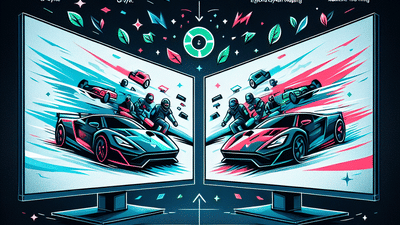
Imagine playing a high-speed racing game. The cars are moving swiftly, the scenery is changing rapidly, and every millisecond counts. In such a scenario, a higher refresh rate can be the difference between victory and defeat. A higher refresh rate, such as 144Hz, allows your screen to update more frequently, capturing every tiny detail of the fast-paced action. This results in smoother motion, sharper images, and a more immersive gaming experience.
But what if you're not a gamer? Well, even if you're just watching a movie or scrolling through a webpage, a higher refresh rate can still enhance your viewing experience. It can make animations appear more fluid, reduce screen tearing, and even help to minimize eye strain. So, whether you're a hardcore gamer or a casual viewer, learning how to adjust hz on monitor can significantly improve your screen time.
Now, you might be wondering: how do you change monitor hz? Or specifically, how do you change monitor hz windows 10? Or perhaps, how do you change monitor to 144hz? Don't worry, we've got you covered. In the following sections, we'll provide a step-by-step guide on how to increase refresh rate on laptop windows 10, how to adjust hz on monitor, and how to switch your monitor to 144Hz. So, ready to unlock the full potential of your laptop? Let's dive in!
How Refresh Rates Impact Your Laptop's Performance
Ever felt like your laptop is holding back the full potential of your gaming or streaming experience? It's time to delve deeper into the world of refresh rates and understand how they impact your laptop's performance.
Think of the refresh rate as the heartbeat of your laptop screen. A higher refresh rate, measured in hertz (Hz), means your screen is updating its display more frequently each second. This results in a smoother, more fluid visual experience. Whether you're battling it out in a fast-paced online game or binge-watching your favorite series, a higher refresh rate can significantly enhance the quality of your on-screen content.
But what happens when your laptop's refresh rate isn't up to par? You might notice a lag in gameplay, stuttering in videos, or even experience eye strain during extended use. This is where learning to increase laptop refresh rate and adjust monitor Hz can make a world of difference.
Imagine the difference between watching a hummingbird's wings flutter in slow motion versus real-time. With a higher refresh rate, your laptop can capture the rapid motion with more precision, offering a more lifelike and immersive viewing experience.
So, how can you unlock this potential and change monitor to 144Hz? Or perhaps you're wondering how to change Hz on monitor or how to increase refresh rate on laptop windows 10? The following sections will guide you through the process, ensuring you can optimize your screen refresh rate for a seamless experience.
Remember, increasing your laptop's refresh rate isn't just about enhancing your gaming or viewing experience. It's about unlocking the full potential of your laptop and ensuring you get the most out of your technology. So, are you ready to take the leap and transform your laptop's performance?
Step-by-Step Guide: How to Increase Your Laptop's Refresh Rate
So, you've decided to take the leap and increase your laptop's refresh rate. Fantastic! You're about to unlock a whole new level of performance from your device. But where do you start? Let's break it down into simple, manageable steps.
Firstly, you'll need to access your display settings. On Windows 10, you can do this by right-clicking on your desktop and selecting 'Display settings'. Scroll down to 'Advanced display settings' and click on it. You'll see a section titled 'Refresh rate'. This is where the magic happens.
Now, you might be wondering, "how do I change Hz on my monitor?". It's simple. In the 'Refresh rate' dropdown menu, you'll see a list of available refresh rates for your laptop. If you're aiming to change your monitor to 144Hz, select it from the list. If it's not available, don't worry. Choose the highest rate available to optimize your screen refresh rate.
Once you've made your selection, click 'Apply'. A pop-up will appear, asking if you want to keep the changes. Click 'Keep changes' if everything on your screen looks good. If you notice any issues, select 'Revert'. It's important to remember that not all laptops can support higher refresh rates, so always ensure your screen looks correct after making changes.
And there you have it! You've successfully managed to increase your laptop's refresh rate. Now, whether you're gaming, streaming, or just browsing the web, you'll notice a smoother, more fluid visual experience. It's like giving your laptop a new lease on life!
But remember, understanding refresh rates and how to adjust monitor Hz is just the beginning. There's a whole world of optimization out there, waiting for you to explore. So, why stop here? Dive deeper, learn more, and continue to unlock the full potential of your laptop. After all, technology is a tool, and the more adept you are at using it, the better your experience will be.
Optimizing Screen Refresh Rate for a Seamless Experience
Now that you've successfully managed to increase your laptop's refresh rate, you might be wondering, "What's next?" Well, the journey to a seamless visual experience doesn't stop here. It's time to delve deeper into the realm of optimization. Let's take a closer look at how to optimize your screen refresh rate for a truly immersive experience.
Imagine being in the midst of an intense gaming session or watching a high-speed car chase in a movie. You'd want every frame to be as smooth as silk, wouldn't you? That's where optimizing your refresh rate comes into play. By fine-tuning your settings, you can ensure that your laptop delivers the best visual performance possible, eliminating any chances of screen tearing or stuttering.
But how do you go about it? It's all about understanding refresh rates and knowing how to adjust your monitor Hz. Remember, the higher the refresh rate, the smoother the visuals. So, if you're aiming to change your monitor to 144Hz, you're on the right track. However, it's crucial to ensure that your laptop can support such a high refresh rate. If it can't, don't fret. Opt for the highest refresh rate your laptop can comfortably handle. This way, you're still optimizing your screen refresh rate, albeit to a slightly lesser degree.
Now, you might be thinking, "how do I change Hz on my monitor?" or "how to increase refresh rate on laptop windows 10?" Don't worry, we've got you covered. You've already navigated through your display settings and found the 'Refresh rate' dropdown menu. That's half the battle won. The rest is just as simple. Select the desired refresh rate, click 'Apply', and voila! You've successfully optimized your screen refresh rate.
Remember, the goal here is to create a seamless, fluid visual experience. So, don't be afraid to experiment with different refresh rates until you find the one that suits you best. After all, technology is meant to be explored, and the more you learn, the better your experience will be. So, why not dive in and unlock the full potential of your laptop?
Stay tuned for our next section, where we'll walk you through the process of changing your monitor's Hz. It's simpler than you think, and it's another step towards achieving that perfect visual experience. So, are you ready to take your laptop to the next level?
Changing Your Monitor's Hz: A Simple Walkthrough
Excited to take your laptop's performance up a notch? You're at the right place! In this section, we're going to guide you through the process of changing your monitor's Hz. It's a simple yet crucial step towards optimizing your screen refresh rate and achieving that buttery smooth visual experience you've been dreaming of.
First things first, let's address the question on your mind: "What does changing my monitor's Hz even mean?" Well, simply put, it's about adjusting the refresh rate of your monitor. Remember, the refresh rate is the number of times your screen updates with new images each second. So, when you change your monitor to 144Hz, you're essentially enabling your screen to refresh 144 times per second. Impressive, right?
Now, let's get down to the nitty-gritty: how to change Hz on monitor. It's a straightforward process. Just navigate to your display settings, find the 'Refresh rate' dropdown menu, and select your desired refresh rate. Click 'Apply', and there you have it! You've successfully managed to increase laptop refresh rate.
But wait, what if you're a Windows 10 user wondering, "how to increase refresh rate on laptop windows 10?" Don't worry, we've got you covered. The process is pretty much the same. Just head over to your display settings, locate the 'Refresh rate' option, and select your preferred rate. Easy peasy!
Remember, the goal here is not just to optimize screen refresh rate, but to create a seamless, fluid visual experience. So, don't hesitate to experiment with different refresh rates until you find the one that suits you best. After all, the more you explore, the better your experience will be. So, why not dive in and unlock the full potential of your laptop?
Stay tuned for our next section, where we'll delve deeper into the world of refresh rates and guide you on how to change your monitor to 144Hz. It's another step towards achieving that perfect visual experience. Are you ready to take your laptop to the next level?
Taking the Leap: How to Change Your Monitor to 144Hz
So, you're ready to take the leap and change your monitor to 144Hz? Fantastic! This is where the magic happens, where you truly unlock the full potential of your laptop's visual prowess. But how do you go about it? Let's break it down.
First, it's important to understand that not all monitors can reach a refresh rate of 144Hz. So, before you get started, make sure your laptop's monitor is capable of this feat. If it is, you're in for a treat. If not, don't fret. Even a modest increase in refresh rate can significantly enhance your visual experience.
Now, let's dive into the process. To change monitor Hz, you'll need to navigate to your laptop's display settings. This is where you'll find the 'Refresh rate' dropdown menu. From here, you can select '144Hz' (if it's available) and click 'Apply'. 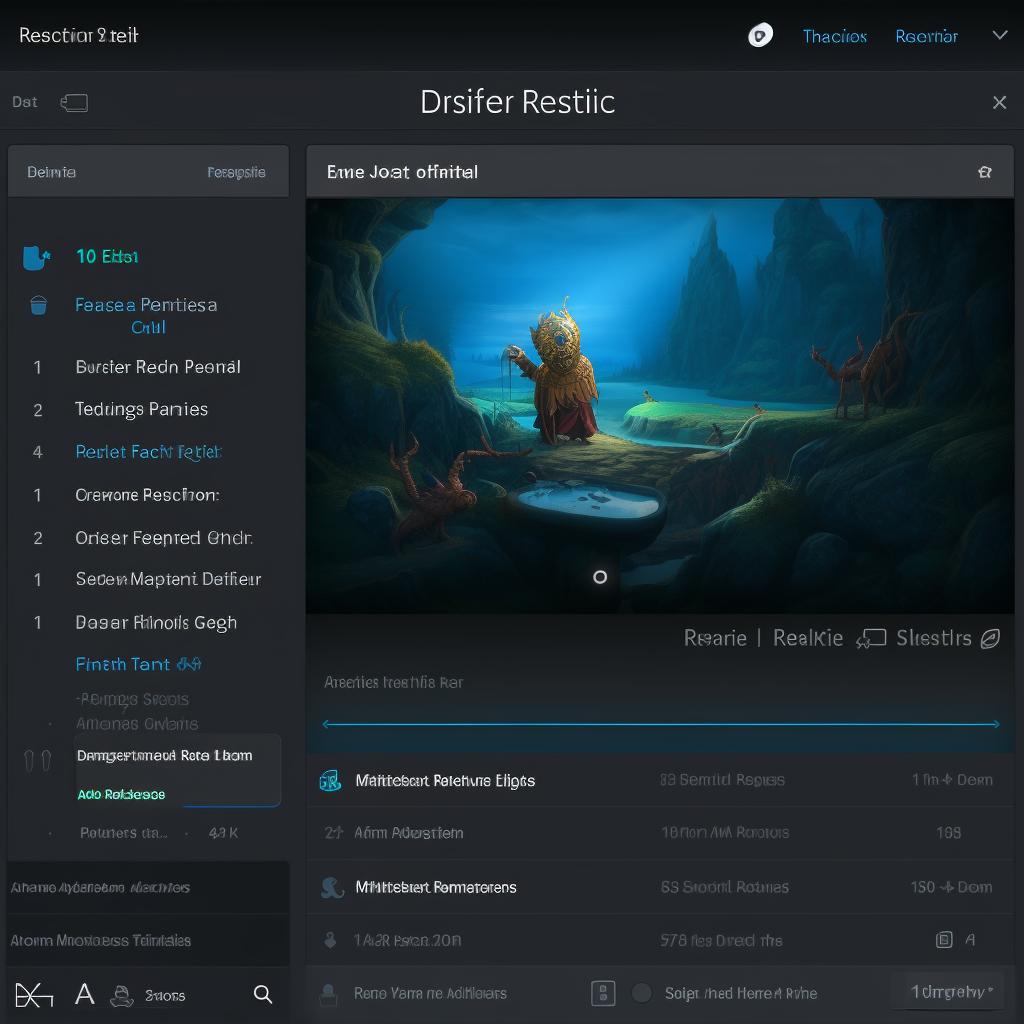
Voila! You've successfully managed to increase laptop refresh rate to 144Hz. But what does this mean for you? Well, imagine a buttery smooth visual experience, where motion is rendered with stunning clarity and precision. That's the power of a 144Hz refresh rate!
But remember, optimizing your screen refresh rate isn't just about hitting the highest number possible. It's about finding the sweet spot that suits your needs and preferences. So, feel free to experiment with different refresh rates. Who knows? You might discover that a slightly lower rate offers a more comfortable viewing experience for you.
So, are you ready to take your laptop's performance to new heights? With a little understanding and a few simple steps, you can optimize your screen refresh rate and enjoy a truly seamless visual experience. So, why wait? Dive in and unlock the full potential of your laptop today!
Increasing Refresh Rate on Windows 10: A Comprehensive Tutorial
Now that you've taken the leap and changed your monitor to 144Hz, let's delve into the world of Windows 10 and explore how to further increase your laptop's refresh rate. This is where your journey to optimizing screen refresh rate truly begins, and where your laptop's visual capabilities truly shine.
First, right-click on your desktop and select Display settings. Scroll down to Advanced display settings and click on it. Here, you'll find a wealth of information about your laptop's display, including its current refresh rate. Ready to change it? Click on Display adapter properties.
A new window will pop up. Navigate to the Monitor tab. This is where the magic happens. You'll see a dropdown menu under Screen refresh rate. Click on it and you'll see a list of available refresh rates. Choose the one that suits your needs and click Apply. A pop-up will appear, asking you to confirm your choice. Click OK and you're done!
And there you have it! You've successfully managed to increase your laptop's refresh rate on Windows 10. But remember, this is just the beginning. The world of refresh rates is vast and exciting, and there's always more to learn and explore. So why stop here? Dive deeper, experiment with different rates, and find the perfect balance that suits your unique needs and preferences.
Remember, the goal isn't just to increase laptop refresh rate, but to optimize screen refresh rate for a seamless, immersive visual experience. So, whether you're a gamer seeking the ultimate competitive edge, a designer craving pixel-perfect precision, or a movie buff longing for buttery smooth playback, understanding refresh rates and knowing how to adjust monitor Hz is your key to unlocking a world of visual delight.
So, what are you waiting for? Take the plunge, change your monitor Hz, and unlock the full potential of your laptop today! And remember, whether you're looking to understand motion rate vs refresh rate, refresh rate vs fps, or anything in between, Refresh Rates Review is here to guide you every step of the way.
Ready to embark on your refresh rate journey? Let's get started!
No comments yet. Be the first to share your thoughts!