

Understanding the Basics: What is a Refresh Rate?
Have you ever wondered what makes the images on your Mac screen appear so smooth and seamless? The secret lies in the refresh rate. But what exactly is a refresh rate? Let's dive into the basics.
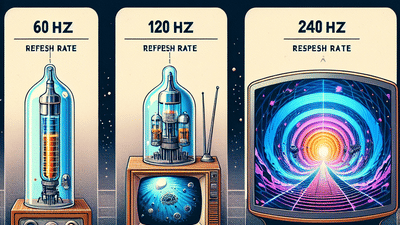
A refresh rate, simply put, is the number of times your screen updates with new images each second. It's measured in hertz (Hz), and a higher refresh rate means smoother visuals, reducing motion blur and providing a better overall viewing experience. Whether you're gaming, streaming your favorite show, or working on a graphic design project, the refresh rate can significantly impact your screen's performance.
Understanding how to optimize screen refresh rates is crucial, especially for Mac users. Why? Because Macs are known for their superior display quality, and optimizing your refresh rate can help you make the most of this feature.
But how does refresh rate relate to other terms you might have heard, like frames per second (fps) or motion rate? And more importantly, how can you change refresh rate on Mac to suit your needs? This Mac refresh rate guide will answer all these questions and more, providing a comprehensive look at this often misunderstood aspect of screen technology.
So, are you ready to demystify refresh rates and enhance your Mac experience? Let's get started!
Refresh Rate vs FPS: What's the Difference?
Now that we've laid the groundwork by understanding what a refresh rate is, let's delve into another commonly used term in the digital world: frames per second, or FPS. You may be wondering, how does refresh rate vs fps factor into the equation? Well, let's unravel this mystery.
Frames per second (FPS) refers to the number of individual images that a device, like your Mac, can display each second. It's a term most commonly used in the realm of video games and video playback. A higher FPS means smoother motion in video or gameplay, providing a more immersive and realistic experience.
So, how does FPS differ from refresh rate? While they might seem similar, they serve different purposes. The refresh rate, as we learned, is the number of times your screen updates with new images per second. On the other hand, FPS is the number of distinct images that a source (like a game or video) sends to your screen each second.
Imagine you're watching a movie on your Mac. The movie is the source, and it's sending 24 frames (images) to your screen every second (24 FPS). If your Mac's refresh rate is 60Hz, it's updating the screen 60 times per second. But since it's only receiving 24 new frames from the movie each second, some frames will be displayed more than once.
So, when optimizing screen refresh rates, it's important to consider the FPS of your content. If you're a gamer, you'd want both a high refresh rate and high FPS for the smoothest gameplay. But if you're mainly watching movies or browsing the web, a super high refresh rate might not make a noticeable difference.
Understanding the difference between refresh rate vs fps is a crucial step in learning how to change refresh rate on Mac. It helps you make informed decisions about optimizing your Mac's display for your specific needs. So, are you ready to take the next step in this Mac refresh rate guide? Let's move on to the next topic: motion rate vs refresh rate.
Motion Rate vs Refresh Rate: A Comparative Analysis
As we continue our journey through the realm of screen optimization, we encounter another term that might seem perplexing at first glance: motion rate. You might be asking yourself, "What is motion rate, and how does it compare to refresh rate?" Well, let's dive in and unravel this enigma.
Motion rate, also known as motion refresh rate, is a term predominantly used by TV manufacturers. It's a measure designed to express how well a TV can display fast-moving action, such as sports or action-packed movies. In essence, it's a marketing term used to make a TV's performance seem superior. But here's the catch: motion rate isn't a standardized measurement, meaning different manufacturers might calculate it differently.
On the other hand, refresh rate, as we've learned, is a standardized measure across all devices, including your Mac. It's the number of times your screen updates with new images per second. So, when we compare motion rate vs refresh rate, we find that refresh rate is a more reliable and universally applicable metric for screen performance.
Now, you might be wondering, "Why is this important when I want to change refresh rate on Mac?" Well, understanding the difference between these two terms can help you make more informed decisions when optimizing screen refresh rates. For instance, if you're using your Mac to watch a lot of high-action content, you might want to consider a display with a higher refresh rate to ensure smooth motion. Conversely, if your usage is more casual, like web browsing or document editing, a standard refresh rate should suffice.
So, as we delve deeper into this Mac refresh rate guide, remember that not all rates are created equal. Understanding the nuances between terms like motion rate and refresh rate can empower you to optimize your Mac's display for your specific needs. Ready to learn more? Let's press on.
Why Optimize Screen Refresh Rates on Your Mac?
So, why should you optimize screen refresh rates on your Mac? The answer is simple: to enhance your viewing experience. Whether you're a gamer seeking seamless action, a video editor needing precise frame-to-frame transitions, or a movie enthusiast desiring smooth playback, optimizing your Mac's refresh rate can significantly improve your visual experience.
Think of it this way: the higher the refresh rate, the more frequently your screen updates with new images. This results in smoother motion and less screen tearing, which is when your screen displays parts of multiple frames in one go. It's like having a superpower that allows you to see every detail in high-speed action without any blur.
But, it's not just about the visuals. A higher refresh rate can also reduce eye strain. If you're spending long hours in front of your Mac, a higher refresh rate can make the experience more comfortable, reducing the likelihood of headaches and eye fatigue.
However, it's important to note that optimizing screen refresh rates isn't a one-size-fits-all solution. The optimal refresh rate can vary depending on your specific needs and the capabilities of your Mac. For example, gamers might prefer a higher refresh rate for smoother gameplay, while those using their Mac for tasks like browsing or document editing might not notice much difference beyond a standard refresh rate.
So, how do you change refresh rate on Mac to suit your needs? Don't worry, we've got you covered. In the next section of this Mac refresh rate guide, we'll walk you through the steps to adjust your Mac's refresh rate. Whether you're a tech novice or a seasoned pro, you'll find our guide easy to follow.
Remember, understanding the intricacies of refresh rate vs fps and motion rate vs refresh rate can empower you to make the right decisions for your Mac's display settings. So, are you ready to optimize your Mac's screen refresh rate? Let's dive in.
Troubleshooting Common Issues: When Changing Refresh Rate on Mac Doesn't Work
While the process to change refresh rate on Mac is typically straightforward, you might encounter some hiccups along the way. Don't fret! This section of our Mac refresh rate guide will help you troubleshoot common issues.
One common problem is the inability to see the refresh rate option in your display settings. This can occur if your Mac is not connected to an external display. Remember, Mac's built-in displays have a fixed refresh rate, and the option to change it only appears when an external monitor is connected.
Another issue could be the unavailability of your desired refresh rate in the list of options. This usually happens when your monitor doesn't support the refresh rate you're aiming for. In such cases, it's best to refer to your monitor's manual or manufacturer's website to understand its capabilities.
Are you experiencing screen flickering after changing the refresh rate? This could be a sign of a refresh rate that's too high for your monitor to handle. Try reducing the refresh rate to see if the issue resolves.
Remember, optimizing screen refresh rates is not just about pushing for the highest number. It's about finding a balance that offers smooth visuals without straining your hardware. Understanding the relationship between refresh rate vs fps and motion rate vs refresh rate can help you make an informed decision.
Still facing issues? Don't hesitate to reach out to Apple support or consult a tech expert. After all, the goal is to enhance your Mac experience, not to add to your frustrations!
As you continue your journey in understanding and optimizing screen refresh rates, keep in mind that every hiccup is a learning opportunity. Stay curious, stay patient, and you'll master the art of refresh rates in no time.
Keeping Up with the Times: Latest Updates on Mac Refresh Rates
As we delve into the ever-evolving world of technology, it's crucial to stay updated with the latest advancements. This holds true for Mac refresh rates as well. Apple's commitment to providing a seamless visual experience is evident in their consistent updates. So, what's the latest buzz in the realm of Mac refresh rates? Let's find out!
Apple's recent macOS Monterey update has brought about some exciting changes. One such enhancement is the introduction of ProMotion technology in the new MacBook Pro models. This feature dynamically adjusts the screen refresh rate up to a whopping 120Hz, depending on the content. This means smoother animations, more responsive scrolling, and an overall enhanced visual experience. It's a game-changer, especially for those who use their Mac for gaming or professional video editing.
But what if you don't have the latest MacBook Pro? Don't worry! Apple hasn't forgotten about you. The macOS Monterey update also includes improvements for external displays connected to Macs. Now, you can easily change refresh rate on Mac for your external monitor, optimizing screen refresh rates to suit your needs.
Remember, the key to optimizing your Mac's performance lies in understanding the intricate dance between refresh rate vs fps and motion rate vs refresh rate. It's not about chasing the highest numbers, but about finding the sweet spot that offers a smooth, strain-free visual experience.
So, are you ready to dive into the world of refresh rates and unlock the full potential of your Mac's display? Whether you're a seasoned tech enthusiast or a curious beginner, our comprehensive Mac refresh rate guide is here to help you every step of the way. Don't be afraid to experiment, learn, and grow. After all, every journey begins with a single step.
As we wrap up this guide, we encourage you to keep exploring, keep questioning, and most importantly, keep learning. The world of technology is vast and ever-changing, and there's always something new to discover. So, why wait? Start your journey today and transform your Mac experience like never before!
Understanding the Importance of Screen Refresh Rates
Have you ever wondered why some digital experiences feel smoother than others? The answer lies in the magic of screen refresh rates. This often overlooked feature can make a world of difference in your gaming, video streaming, or even day-to-day computing tasks. Our Mac refresh rate guide will help you understand and optimize this crucial aspect of your screen's performance.
So, what exactly is a screen refresh rate? It's the number of times your screen updates with new images each second. Measured in Hertz (Hz), a higher refresh rate can offer a more fluid viewing experience. It's like the difference between a choppy old film and a sleek modern video. But it's not just about aesthetics; understanding screen refresh rates can also help you troubleshoot performance issues and make more informed decisions about hardware purchases.
But how does this tie into gaming? Well, if you're a gamer, you might have heard about refresh rate vs fps or motion rate vs refresh rate. These terms can seem confusing, but they're all part of the same conversation about how to create the smoothest, most immersive gaming experience possible. And yes, we'll be diving into these topics in detail later in this guide.
Whether you're looking to change refresh rate on Mac for a smoother gaming experience, or simply curious about the technology behind your screen, you're in the right place. So, buckle up and let's embark on this journey to demystify screen refresh rates together!
Motion Rate vs Refresh Rate: Clearing the Confusion
With a clear understanding of refresh rate vs fps under your belt, let's now turn our attention to another pair of terms that often cause confusion: motion rate vs refresh rate. As we continue our journey through this Mac refresh rate guide, it's essential to clarify these concepts to fully comprehend how to change refresh rate on Mac and choose the best refresh rates for gaming or other activities.
So, what exactly is motion rate? In the simplest terms, motion rate is a term coined by manufacturers to describe the perceived smoothness of motion on a screen. It's often used in marketing materials for TVs and monitors, and can sometimes be misleading. Why? Because motion rate isn't a standardized measurement like refresh rate or fps. Instead, it's a figure that manufacturers derive using various proprietary methods, often resulting in inflated numbers that don't truly represent the screen's performance.
On the other hand, refresh rate, as we've learned, is a concrete measure of how many times your screen updates with new images each second. It's a critical factor in determining the smoothness of motion on your screen, particularly when it comes to fast-paced activities like gaming or watching high-speed action movies.
So, how do these two relate? Well, while refresh rate is a concrete measure, motion rate is more of a perceived measure. A screen with a high refresh rate should theoretically offer a smoother motion. However, the actual perceived smoothness (motion rate) can be influenced by various factors, including the source content's fps, the screen's response time, and even the viewer's individual perception.
Understanding the difference between motion rate vs refresh rate is crucial in making informed decisions about your Mac's display settings. It's not just about chasing the highest numbers, but about finding the balance that delivers the best viewing or gaming experience for you. So, are you ready to dive deeper into this Mac refresh rate guide and learn how to check and change your Mac's refresh rate? Let's get started!
Mac Refresh Rate Guide: How to Check Your Current Refresh Rate
Now that we've explored the intricacies of motion rate vs refresh rate, it's time to delve into the practical side of things. How can you check your current refresh rate on your Mac? This is an essential step in our Mac refresh rate guide before you can proceed to change refresh rate on Mac. Understanding your screen's current refresh rate can help you make informed decisions about whether you need to adjust it for a better gaming or viewing experience.
Checking your Mac's refresh rate is a straightforward process. First, click on the Apple logo located at the top left corner of your screen. From the drop-down menu, select 'System Preferences'. Then, click on 'Displays'. In the display preferences window, you'll find an option labeled 'Refresh Rate'. This is where your current refresh rate is displayed. It's as simple as that!
But what does this number mean? Remember, the refresh rate is the number of times your screen updates with new images each second. A higher refresh rate typically results in smoother motion, making it ideal for fast-paced activities like gaming. However, as we've discussed earlier, the perceived smoothness (motion rate) can also be influenced by other factors, such as the source content's fps and the screen's response time.
So, do you need to change your refresh rate? That depends on your individual needs and preferences. If you're a gamer, you might want to opt for a higher refresh rate to enjoy smoother gameplay. If you're a movie buff, a standard refresh rate might suffice. The key is to understand your needs and adjust your settings accordingly.
Stay tuned as we continue our journey through this Mac refresh rate guide. In the next section, we'll provide a step-by-step guide on how to change refresh rate on Mac. We'll also discuss how to choose the best refresh rates for gaming on Mac and troubleshoot common issues with Mac refresh rates. So, are you ready to optimize your Mac's display settings for the ultimate viewing or gaming experience? Let's move forward!
Step-by-Step Guide: How to Change Refresh Rate on Mac
Now that you're familiar with your current refresh rate, let's delve into the process of how to change refresh rate on Mac. This step-by-step guide will empower you to take control of your Mac's display settings, ensuring the best possible viewing or gaming experience.
First, navigate to 'System Preferences' by clicking on the Apple logo at the top left corner of your screen. From there, select 'Displays'. This will open a new window where you'll find an option labeled 'Refresh Rate'. Click on this option to reveal a drop-down menu with different refresh rate choices. Select the refresh rate that best suits your needs. Remember, a higher refresh rate can offer smoother visuals, particularly beneficial for gaming or watching high-speed action sequences. However, it can also consume more power, so choose wisely based on your usage.
But how do you know which refresh rate is the best for you? Well, that's where understanding screen refresh rates comes into play. As we've discussed, the refresh rate is the number of times your screen updates with new images each second. If you're a gamer, you might want a higher refresh rate for smoother gameplay. On the other hand, if you primarily use your Mac for work or watching movies, a standard refresh rate might be more than sufficient.
It's also crucial to understand the relationship between refresh rate vs fps and motion rate vs refresh rate. These factors can significantly influence your viewing experience, especially in fast-paced scenarios. For example, even with a high refresh rate, if the source content's fps is low, you might not experience the smoothness you'd expect. Similarly, the screen's response time can also impact the perceived smoothness or motion rate.
So, are you ready to optimize your Mac's display settings? Remember, the key is to understand your needs and adjust your settings accordingly. With this Mac refresh rate guide, you're now equipped to make informed decisions about your Mac's refresh rate. Stay tuned as we dive deeper into choosing the best refresh rates for gaming on Mac and troubleshooting common issues with Mac refresh rates in the upcoming sections.
Choosing the Best Refresh Rates for Gaming on Mac
Choosing the best refresh rates for gaming on a Mac can seem like a daunting task, especially if you're new to the world of gaming. But fear not, this guide is here to help you navigate through the complexities of refresh rates, fps, and motion rates, ensuring you have the best gaming experience possible.
When it comes to gaming, a higher refresh rate is generally more desirable. This is because a higher refresh rate allows for smoother visuals and less motion blur, which can give you a competitive edge in fast-paced games. However, it's important to remember that not all games will benefit from a higher refresh rate. For example, strategy games or slower-paced games might not require a high refresh rate. In these cases, a standard refresh rate might be more than sufficient.
Another important factor to consider is the relationship between refresh rate and fps (frames per second). As we've discussed earlier, even if you have a high refresh rate, if the game's fps is low, you might not experience the smoothness you'd expect. Therefore, it's important to ensure that the game you're playing can deliver a high fps. This is where understanding the difference between refresh rate vs fps and motion rate vs refresh rate becomes crucial.
So, how do you find the sweet spot? The key is to experiment. Try different refresh rates and see which one offers the best gaming experience for you. Remember, every game is different, and what works for one might not work for another. Therefore, don't be afraid to change your refresh rate based on the game you're playing.
With this Mac refresh rate guide, you're now equipped to make an informed decision about the best refresh rate for your gaming needs. But remember, optimizing your Mac's display settings is a continuous process. So, keep experimenting, keep learning, and most importantly, keep gaming!
Stay tuned as we delve deeper into troubleshooting common issues with Mac refresh rates in the next section. Happy gaming!
Troubleshooting Common Issues with Mac Refresh Rates
As you journey deeper into the world of gaming, you may encounter some common issues with your Mac's refresh rate. But don't worry, this Mac refresh rate guide is here to help you troubleshoot and resolve these issues, ensuring you continue to enjoy a seamless gaming experience.
One common issue you might face is screen flickering. This usually happens when the refresh rate is not compatible with the game you're playing. If you're experiencing this, try to change the refresh rate on your Mac to match the game's requirements. Remember, every game is different, and it's all about finding the right balance.
Another common issue is screen tearing, where the display appears disjointed. This is often due to a mismatch between the game's fps and your Mac's refresh rate. Understanding the relationship between refresh rate vs fps can help you resolve this issue. If your game's fps is higher than your Mac's refresh rate, you might need to enable VSync or adjust your game settings to limit the fps.
Lastly, you might notice a lag in your game's motion, despite having a high refresh rate. This could be due to the difference between motion rate vs refresh rate. If your game involves a lot of fast-paced action, you might need a higher motion rate to keep up with the rapid movements.
Remember, the key to resolving these issues is to experiment and learn. Don't be afraid to tweak your settings and see what works best for you. And, if you're still having trouble, don't hesitate to reach out to the gaming community for help. After all, we're all in this together!
As we wrap up this guide, we hope you now have a better understanding of screen refresh rates and how to optimize them for your gaming needs. Keep exploring, keep learning, and keep pushing the boundaries of your gaming experience. And remember, the best refresh rates for gaming are the ones that work best for you. So, go ahead and change your refresh rate on Mac, experiment with different settings, and discover what works best for you. Happy gaming!
No comments yet. Be the first to share your thoughts!